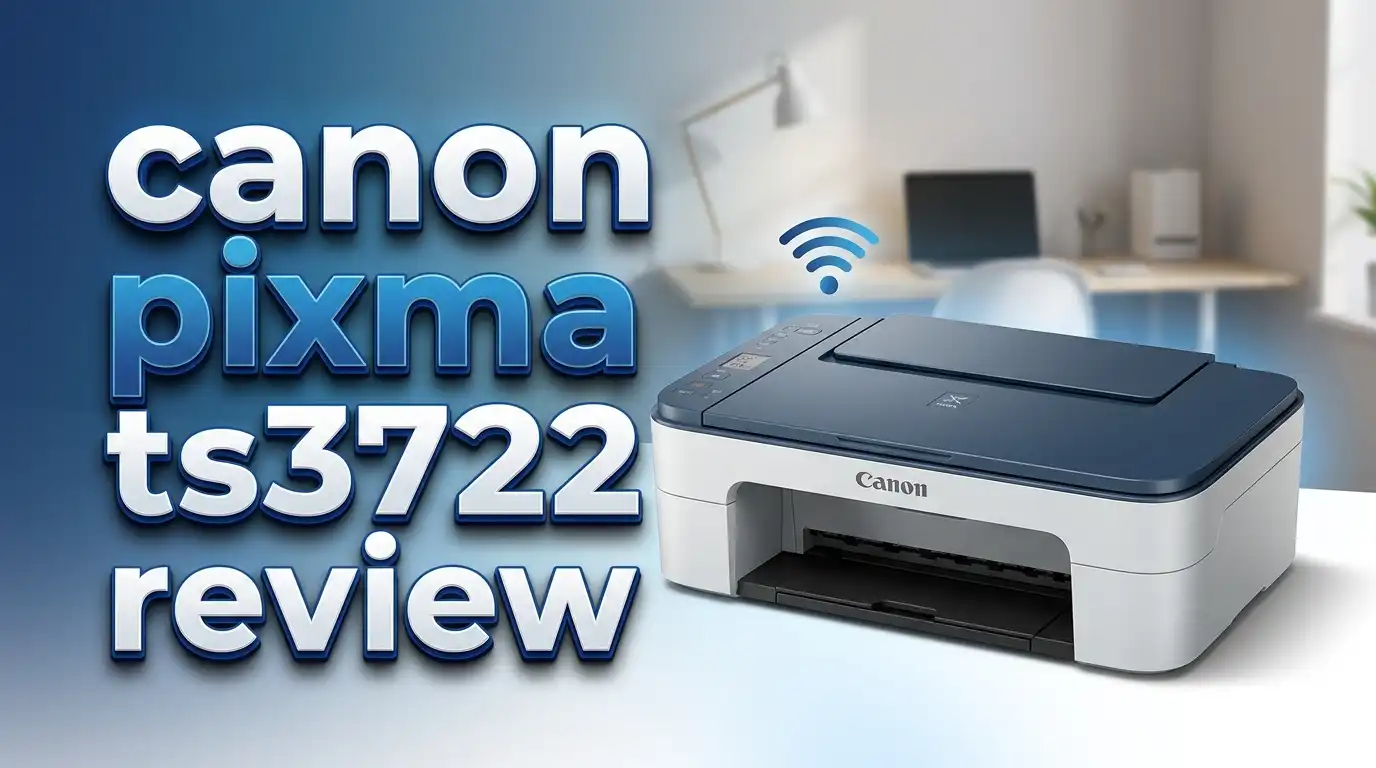
Canon PIXMA TS3722 Review 2026: All-in-One Printer Worth It?
Are you looking for an affordable home printer that prints, copies, and scans without breaking the bank? The Canon PIXMA TS3722 has been a go-to choice for budget shoppers since its release. It sits at a price point under $50, which makes it one of the cheapest all-in-one printers you can buy right now. But is a low price enough to make it a smart purchase in 2026?
In this detailed review, we break down everything about the Canon PIXMA TS3722. We cover its print quality, wireless features, ink costs, scanner performance, and real-world usability. We also compare it against its closest competitors so you can decide if this printer fits your daily needs.
Whether you are a student, a remote worker, or someone who prints a few pages each week, this review will give you the answers you need. Read on to find out if this little Canon printer deserves a spot on your desk.

Key Takeaways: Canon PIXMA TS3722 in a Nutshell
- The Canon PIXMA TS3722 is a wireless 3-in-1 printer that handles printing, copying, and scanning at an entry-level price point under $50, making it one of the most affordable all-in-one inkjet printers on the market in 2026.
- Print speed is modest at 7.7 pages per minute (black) and 4 pages per minute (color), which is fine for light home use but may feel slow for anyone with heavy print demands.
- It supports both 2.4 GHz and 5 GHz Wi-Fi bands, along with Apple AirPrint and the Canon PRINT app for mobile printing, so you can print from your phone, tablet, or laptop without a USB cable.
- The 60-sheet paper tray is small and only supports single-sided (simplex) printing. There is no automatic duplex printing. You must flip pages manually for two-sided prints.
- Ink costs add up over time because it uses Canon PG-275 and CL-276 cartridges with relatively low page yields. The printer itself is cheap, but replacement ink can become expensive if you print often.
- The 1.5-inch segment LCD display is basic but functional. It shows enough information to complete simple tasks like copying and checking ink levels without needing a computer.
Canon PIXMA TS3722 Overview

- 【Print Speed】Black: ESAT Approx. 7.7 ipm, Color: ESAT Approx. 4.0 ipm
- 【Paper Handling Input】Rear Paper Tray: 60 Sheets of Plain Paper OR 20 Sheets 4" x 6"
Last update on 2026-06-17 / Affiliate links / Images from Amazon Product Advertising API
The Canon PIXMA TS3722 is a compact wireless inkjet all-in-one printer built for basic home use. Canon designed this model as a Walmart-exclusive variant of the PIXMA TS3720. Both models share identical hardware, features, and performance. The only difference is the retail channel.
This printer uses Canon’s 2-Cartridge FINE Hybrid Ink System. It pairs one black cartridge (PG-275) with one color cartridge (CL-276). The hybrid ink system uses both dye-based and pigment-based inks to produce sharp text and decent color output.
The TS3722 measures roughly 17.2 x 12.5 x 5.8 inches with the trays closed. It weighs about 7.5 pounds. This makes it easy to place on a desk, shelf, or small table. The compact size is a clear selling point for people with limited space.
It connects to your home network through Wi-Fi (2.4 GHz or 5 GHz). You can also use a USB 2.0 cable for a direct connection to your computer. The dual-band Wi-Fi support is a nice bonus at this price range, as many competing budget printers only support 2.4 GHz.
Print Quality and Speed
Print quality on the Canon PIXMA TS3722 is acceptable for everyday documents. Text prints come out sharp and easy to read at standard quality settings. Black text on white paper looks clean, with minimal bleeding or fuzzy edges. This is a good printer for school assignments, basic reports, and forms.
Color printing is a mixed bag. Photos printed on plain paper look washed out and lack vibrancy. However, if you use Canon’s glossy photo paper, the results improve. The printer supports borderless photo printing up to 5 x 7 inches, which is a nice touch for occasional photo prints. Don’t expect professional-grade photos, though.
Print speed sits at 7.7 images per minute (ipm) for black-and-white and 4 ipm for color. These numbers reflect real-world output using Canon’s standard test conditions. A single full-color photo can take a minute or more, depending on the quality setting.
The maximum print resolution is 4800 x 1200 dpi. This sounds impressive on paper, but the actual output at this resolution is slow and uses a lot of ink. For most tasks, the default resolution provides the best balance of speed and quality.
Wireless and Mobile Printing Features
The Canon PIXMA TS3722 supports several wireless printing options. You can connect it to your home Wi-Fi network on either the 2.4 GHz or 5 GHz band. This dual-band support reduces connection issues in homes with many devices on one band.
Apple AirPrint is built in. iPhone and iPad users can print directly from any app that supports the print function. Android users can use the Mopria Print Service or the Canon PRINT Inkjet/SELPHY app to send print jobs from their devices.
The Canon PRINT app also lets you scan documents and photos to your phone directly. You can save scans as PDFs or image files without using a computer. This is useful for quick scans of receipts, documents, or school papers.
One notable missing feature is cloud printing support from the printer itself. You cannot print directly from Google Drive, Dropbox, or other cloud services through the printer’s interface. You need to open the file on your phone or computer first and then send it to the printer. This is a minor inconvenience, but something to keep in mind.
Top 3 Alternatives for Canon PIXMA TS3722
If the Canon PIXMA TS3722 does not fit your needs, here are three strong alternatives in the same budget price range.
1. HP DeskJet 2755e — This is HP’s direct competitor. It offers similar print, scan, and copy functions. It includes HP Instant Ink eligibility, which can lower your ink costs if you subscribe. The print quality is comparable, and it supports HP Smart app features for easy mobile printing.

- Sold as 1 Each.
- Ideal for everyday printing needs, this all-in-one inkjet printer is perfect for printing basic color...

Last update on 2026-06-17 / Affiliate links / Images from Amazon Product Advertising API
2. Epson Expression Home XP-4200 — This printer steps things up with a 2.4-inch color LCD display, automatic two-sided printing, and borderless photo printing up to 8.5 x 11 inches. It costs a bit more than the TS3722, but the extra features make it a strong value.

- Remarkable Print Quality for Home and Photo Printing — Epson’s leading-edge imaging technology produces...
- Stress-Free Setup and Operation — Large 2.4" color display for effortless navigation, plus easy installation...
Last update on 2026-07-11 / Affiliate links / Images from Amazon Product Advertising API
3. Canon PIXMA TR4720 — If you need a fax function and an auto document feeder (ADF), the TR4720 is the better Canon option. It uses the same ink cartridges as the TS3722 and adds fax capability plus a 20-sheet ADF for multi-page scanning and copying.

- Wireless 4-in-1 (print | copy | scan | fax)..Power Consumption: 7W (0.8W Standby / 0.3W Off)
- Print speed up to: 4" x 6" Borderless Photo (PP-201): Approx. 65.0 Seconds / Black Document (Letter/Simplex...
Last update on 2026-07-10 / Affiliate links / Images from Amazon Product Advertising API
Scanner and Copier Performance
The Canon PIXMA TS3722 includes a flatbed scanner with a maximum optical resolution of 600 x 1200 dpi. This is standard for budget all-in-one printers. The scanner works well for everyday tasks like scanning documents, receipts, and photos.
The flatbed design means you place one page at a time on the glass. There is no automatic document feeder (ADF). If you need to scan or copy a 10-page document, you must lift the lid and place each page manually. This is fine for occasional use but frustrating for frequent multi-page scanning.
Copy speed is slow. The printer produces about 2.7 copies per minute in black-and-white. Color copies take even longer. You can make up to 99 copies in a single run. The copy function includes basic adjustments like enlargement and reduction from 25% to 400%.
Scan quality is decent for documents. Text scans look clean and readable. Photo scans capture good detail at 600 dpi, though the colors may shift slightly compared to the original. For basic archiving and document digitization, the scanner performs its job without issues.
Paper Handling and Tray Capacity
The Canon PIXMA TS3722 has a rear paper feed tray that holds up to 60 sheets of plain paper. This is on the low end, even for a budget printer. If you print regularly, you will refill the tray often.
The printer accepts several paper sizes. It handles letter, legal, 4 x 6 inch, 5 x 7 inch, and various envelope sizes. You can also use photo paper, matte paper, and Canon’s specialty media. The variety of paper support gives you flexibility for different print jobs.
There is no automatic duplex printing. If you need to print on both sides of a page, you must manually flip the paper and feed it through again. This is a significant drawback for users who print double-sided documents regularly. Many competing printers in this price range also lack this feature, but the Epson XP-4200 includes it.
The output tray extends from the front of the printer. It holds printed pages as they come out. The tray is small and can only hold about 20 to 30 sheets before pages start sliding off. You need to clear the output tray frequently during larger print jobs.
Ink Cartridges and Running Costs
The Canon PIXMA TS3722 uses Canon PG-275 (black) and CL-276 (color) ink cartridges. These are the standard-yield versions. Canon also sells PG-275XL and CL-276XL high-yield cartridges that produce more prints per cartridge.
The standard PG-275 black cartridge yields approximately 180 pages. The CL-276 color cartridge yields about 231 pages. These are low numbers. The high-yield PG-275XL increases the black yield to around 400 pages, and the CL-276XL bumps color yield to roughly 300 pages.
The cost per page adds up quickly. The low purchase price of the printer is offset by the higher ongoing ink costs. If you print 100 pages per month, you could spend more on ink in a year than you paid for the printer itself. This is the classic inkjet printer business model.
Third-party and remanufactured cartridges are available for less money. However, Canon’s firmware may display warnings or limit functionality with non-Canon ink. Using original Canon cartridges ensures the best print quality and avoids compatibility issues, but it costs more.
Setup and Ease of Use
Setting up the Canon PIXMA TS3722 is straightforward. The box includes the printer, a power cord, starter ink cartridges (PG-275 and CL-276), a small photo paper sample pack, and documentation. You can complete the setup in about 10 to 15 minutes.
The Wi-Fi setup uses a wireless connect method that pairs the printer to your phone or computer during initial configuration. The Canon PRINT app walks you through each step. You can also connect via USB if wireless setup gives you trouble.
The 1.5-inch segment LCD is basic. It shows simple icons and numbers rather than a full graphical interface. You can check ink levels, select copy settings, and navigate basic functions. It is not a touchscreen. You use physical buttons below the display to make selections.
Installing the ink cartridges is simple. You open the front panel, wait for the cartridge holder to move into position, and snap the cartridges into place. Canon includes clear diagrams in the quick start guide. Even first-time printer owners should find this process easy.
Design and Build Quality
The Canon PIXMA TS3722 has a clean, minimalist design that fits well in most home environments. It comes in white (exclusive to Walmart as the TS3722) or black (sold as the TS3720 at other retailers). The compact body takes up minimal desk space.
Build quality is adequate for the price point. The outer shell is made of lightweight plastic. It feels sturdy enough for a stationary desktop device, but it does not feel premium. The paper tray and scanner lid are thin and flex slightly under pressure.
The control panel is located on the front face of the printer. It angles slightly upward for easier viewing. The buttons have a satisfying click, and the layout is intuitive. You do not need to read the manual to figure out how to make a basic copy or check your ink levels.
The printer is quiet during operation compared to some other inkjet models. It produces a soft mechanical hum while printing. It is not silent, but it should not disturb anyone working nearby. The overall footprint makes it a good fit for dorm rooms, small offices, and kitchen counters.
Software and App Experience
Canon provides the Canon PRINT Inkjet/SELPHY app for iOS and Android devices. This app handles wireless printing, scanning, and basic printer management. The interface is clean and easy to use. You can print photos, documents, and web pages directly from the app.
For desktop users, Canon offers the IJ Scan Utility and printer drivers for both Windows and macOS. The driver installation is automatic on most modern operating systems. Windows and Mac users can print from any application once the driver is installed.
The Canon PRINT app also supports creative printing templates. You can print calendars, stationery, and greeting cards using built-in templates. This is a fun feature for families and students who want to create custom projects.
One frustration is Canon’s firmware update policy. Canon periodically releases firmware updates that may affect third-party ink cartridge compatibility. Some users have reported that firmware updates blocked their non-Canon cartridges from working. Always check before updating if you use third-party ink.
Who Should Buy the Canon PIXMA TS3722?
The Canon PIXMA TS3722 is best suited for light home users who print fewer than 50 to 100 pages per month. If you need a printer for occasional school assignments, shipping labels, or simple document copies, this printer delivers solid value at its price.
Students will appreciate the low purchase price. Spending under $50 for a working all-in-one printer with wireless capabilities is hard to beat. The mobile printing features make it easy to print from a laptop or phone in a dorm room.
Remote workers with minimal print needs can also benefit from the TS3722. It handles standard letter-sized documents, basic scans, and quick copies. If your job requires heavy printing or double-sided output, look at the Canon PIXMA TR4720 or Epson XP-4200 instead.
This printer is not ideal for photo enthusiasts, small businesses, or anyone who prints in high volume. The small paper tray, lack of duplex printing, and high ink costs per page make it impractical for heavy use. Consider a printer with refillable ink tanks if you print more than 200 pages per month.
Canon PIXMA TS3722 vs Canon PIXMA TS3720
This is a common source of confusion. The Canon PIXMA TS3722 and TS3720 are the same printer. They share identical hardware, software, and performance. The only difference is the sales channel.
The TS3722 is a Walmart-exclusive model that comes in white. The TS3720 is sold through other retailers like Amazon, Best Buy, and Canon’s own store, and it comes in black. Canon assigns different model numbers to track sales across retail partners.
There is no reason to choose one over the other based on performance. Pick the one that is available at the best price or in the color you prefer. Both models use the same PG-275 and CL-276 ink cartridges and receive the same firmware updates.
If you see the TS3720 listed on Amazon and the TS3722 listed at Walmart, know that any review for one model applies equally to the other. This review covers both.
Pros and Cons of the Canon PIXMA TS3722
The biggest advantage of this printer is its price. You get print, copy, and scan functions in a compact wireless unit for under $50. The dual-band Wi-Fi, AirPrint support, and Canon PRINT app add useful connectivity options. Setup is quick and beginner-friendly.
The 2-Cartridge FINE Hybrid Ink System produces clean text documents. Black text on plain paper is sharp and professional. Borderless photo printing up to 5 x 7 inches is a welcome addition for casual photo printing.
On the downside, ink costs are the main concern. The standard cartridges have low page yields, and frequent printing will drive up your total cost of ownership. The 60-sheet paper tray requires frequent refills. The lack of automatic duplex printing feels outdated, even at this price point.
The 1.5-inch segment LCD is functional but bare-bones. It lacks a color display or touchscreen. The scanner has no ADF, which limits its usefulness for multi-page jobs. Copy and scan speeds are slow compared to printers in the $80 to $100 range.
Final Verdict: Is the Canon PIXMA TS3722 Worth Buying in 2026?
- 【Print Speed】Black: ESAT Approx. 7.7 ipm, Color: ESAT Approx. 4.0 ipm
- 【Paper Handling Input】Rear Paper Tray: 60 Sheets of Plain Paper OR 20 Sheets 4" x 6"
Last update on 2026-06-17 / Affiliate links / Images from Amazon Product Advertising API
The Canon PIXMA TS3722 remains a solid entry-level all-in-one printer in 2026. It delivers basic print, scan, and copy features at one of the lowest prices on the market. If you need an affordable wireless printer for light home use, it checks the essential boxes.
The dual-band Wi-Fi, mobile printing support, and compact design are genuine strengths. Canon’s PRINT app makes wireless printing simple, and the setup process takes minutes. For students and casual users, the TS3722 offers real utility at a minimal upfront cost.
However, the long-term ink costs deserve careful thought. The cheap purchase price is the hook, but replacement ink cartridges can quickly surpass the cost of the printer. If you plan to print more than 100 pages per month, a printer with refillable ink tanks or higher-yield cartridges will save you money over time.
Overall, the Canon PIXMA TS3722 earns a recommendation for budget-conscious buyers with light printing needs. It does what it promises at a price that is hard to argue with. Just keep your expectations realistic about ink costs and print volume limits.
Frequently Asked Questions
Does the Canon PIXMA TS3722 support automatic two-sided printing?
No, the Canon PIXMA TS3722 does not support automatic duplex printing. You must manually flip the paper and feed it through the printer again to print on the second side. If automatic two-sided printing is important to you, consider the Epson Expression Home XP-4200, which includes this feature.
What ink cartridges does the Canon PIXMA TS3722 use?
The Canon PIXMA TS3722 uses the Canon PG-275 black ink cartridge and the Canon CL-276 color ink cartridge. High-yield versions (PG-275XL and CL-276XL) are also available for more prints per cartridge. The printer ships with starter cartridges that may have a lower yield than standard retail cartridges.
Can I print from my iPhone or Android phone with the TS3722?
Yes. The Canon PIXMA TS3722 supports Apple AirPrint for iPhones and iPads. Android users can print using the Canon PRINT Inkjet/SELPHY app or the Mopria Print Service. Both methods work over your home Wi-Fi network without needing a USB connection.
Is the Canon PIXMA TS3722 the same as the TS3720?
Yes. The Canon PIXMA TS3722 and TS3720 are identical printers with different model numbers. The TS3722 (white) is sold exclusively at Walmart. The TS3720 (black) is available at Amazon, Best Buy, and other retailers. All specs, features, and performance are the same.
How much does replacement ink cost for the Canon PIXMA TS3722?
The standard PG-275 black cartridge costs around $18 to $19, and the CL-276 color cartridge costs about $22 to $24. The high-yield XL versions cost more upfront but deliver a lower cost per page. A PG-275/CL-276 combo pack typically runs around $41 to $42 at retail.
Does the Canon PIXMA TS3722 have an automatic document feeder?
No. The TS3722 uses a flatbed scanner without an automatic document feeder (ADF). You must place each page on the scanner glass manually. If you need an ADF for multi-page scanning or copying, the Canon PIXMA TR4720 is a better option in the same price range.

DK is a technology expert who specializes in AI tools, software, and tech gadgets. He writes for How to Tech Info, providing detailed reviews and practical guides. DK helps readers discover the best AI applications, navigate new software, and choose the right tech gadgets.