
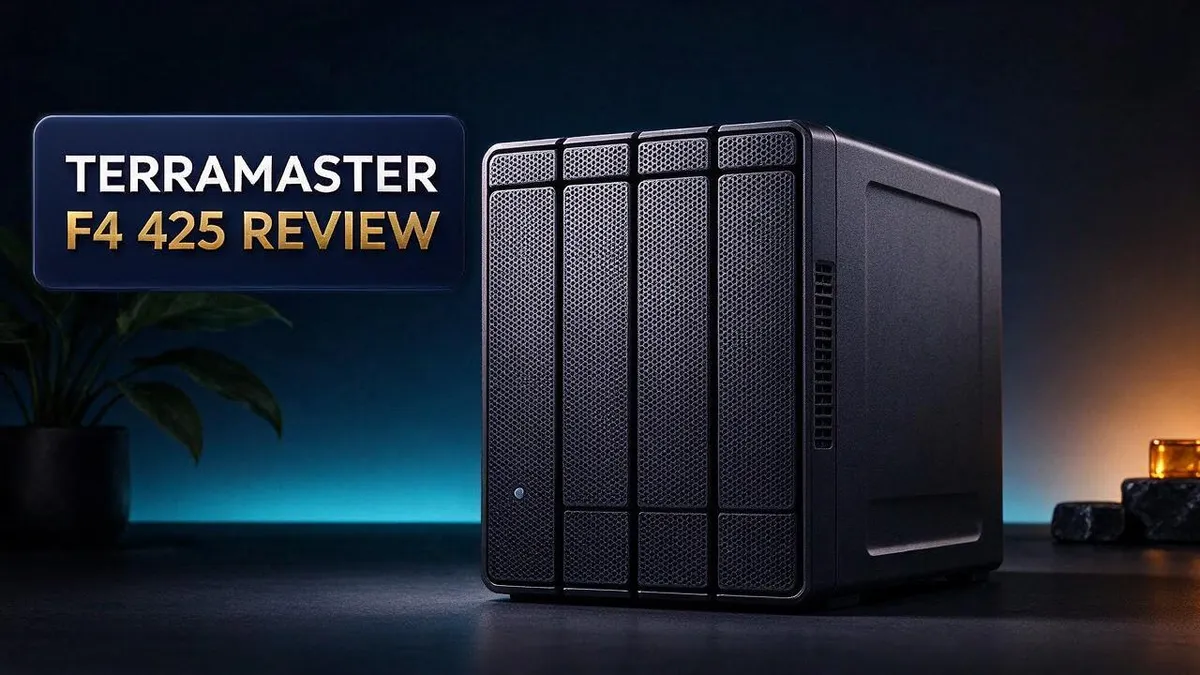
Terramaster F4-425 Review: Specs, Speed, Setup, and Whether It’s Worth Buying
Looking for a NAS that feels powerful yet simple? The Terramaster F4 425 could be the answer. It packs serious hardware into a compact frame.
Many people want storage that stays quiet and fast. This model delivers on both fronts. It runs quietly while it handles backups, media, and file sharing.
Setup is easy, even if you have never owned a NAS. The three M.2 slots and dual 5GbE ports also leave room to grow. Speed is a major highlight. Sequential reads and writes reach about 557 to 584 MB/s, which fully uses a 5GbE connection.
Is this the right pick for you? In this review, we will look at the specs, real world performance, and trade offs. You will also see how it compares with Synology, QNAP, and the smaller F2 425. Let’s dive in.
In a Nutshell
- Two versions are available. The Plus and Pro models share a four bay design, but they differ in memory and security features.
- Transfer speeds fill a 5GbE link. Sequential reads and writes reach about 557 to 584 MB/s, so your network connection gets used fully.
- Three M.2 slots offer extra room. These slots give you more expansion options as your storage needs grow.
- The Plus model adds security. It includes 16GB of DDR5 memory and AES NI hardware encryption for protecting your files.
- The Pro model has a memory ceiling. It tops out at 32GB of RAM and uses a single PCIe lane.
- Smaller or rival systems may fit you better. The TerraMaster F2 425 suits smaller setups, while Synology and QNAP remain the main competitors to consider.
Hardware and Build Quality

- Powerful Performance: Equipped with an Intel x86 quad-core processor and 4GB RAM, the F4-425 network attached...
- Home Multimedia Hub: The F4-425 media server supports hardware-level 4K H.265 decoding, compatible with Plex...
Last update on 2026-11-07 / Affiliate links / Images from Amazon Product Advertising API
Build quality matters more than many people expect. A NAS sits in one place for years, so sturdy parts count. The F4 425 feels solid from the first moment you lift it.
Reviewers often praise the hardware. Many describe it as solidly built for its class. The frame feels firm, and the panels look neat and secure.
Heat plays a big role in storage. Drives work hard during large file transfers. Good airflow keeps them cooler, which can help them last longer.
The fans stay quiet during normal use. That matters if the NAS sits in a living room or home office. You rarely hear it hum in the background.
The back panel offers two 5GbE LAN ports. Each port gives you a separate path to your network. You can use one port for daily sharing and the other for a second device.
Setting up the drives feels straightforward. Even first time owners can slide in their disks and start the install without much trouble.
The footprint suits a desk or shelf. Place it near your router, but keep it away from direct heat sources and tight corners.
Leaving a NAS on all day is common. Owners often run it around the clock for backups and media. Solid hardware handles that constant use with far less stress.
The hardware also decides how much work the device can handle later. The processor and memory limits shape your options. Plan your use before you choose a model.
The Pro model uses a different processor. The exact chip is not clearly named in the available details. Check the spec sheet closely if you plan to run heavy apps.
Good hardware sets the foundation. Strong build quality gives you confidence in daily use. Your files stay in a device that feels dependable.
Storage Speed and 5GbE Throughput
Speed matters most when you move big files. A 5GbE port can carry data much faster than standard gigabit networks. That gap changes how long you wait for video edits or photo backups.
Think about a 50GB video project. On a basic home network, copying it takes a long time. On a 5GbE link, the same copy finishes in a much shorter window. You spend less time watching progress bars.
Your computer also needs to keep up. A 5GbE port only helps if your PC, switch, and cables support the same speed. Many laptops still use gigabit ports, so the NAS may run faster than your laptop can receive.
Dual LAN ports open a second path. The two ports can handle separate devices at once. One family member can stream a movie while another uploads photos. Both tasks feel smoother without slowing each other down.
Drive layout also shapes what you feel day to day. Four bays give you room to pick a storage setup that fits your needs. You can focus on capacity, or you can lean toward safety through redundancy. Either way, the array decides how fast data moves when many users connect.
Small files behave differently. Large files show the top speeds. Thousands of tiny documents often feel slower because each file adds overhead. If your work involves many small files, expect a gentler speed curve.
Long transfers test a NAS in a different way. Short bursts look great on a spec sheet. Hours of continuous writing show whether the system keeps its pace. Plan for those longer jobs if you back up large libraries.
Switch choice matters too. A 5GbE switch lets several devices reach full speed together. Without one, your NAS may connect only to a slower router port.
Test your setup after installation. Copy a large file, then copy a folder full of small files. Compare the results. This simple check shows whether your network, cables, and drives work together well.
Setup and First-Time Experience
Getting started with the Terramaster F4 425 feels easy. The box holds the unit, a power cable, and a network cable.
Begin by installing your drives. Slide each drive into its tray and lock it in place. Most trays need little force.
Connect the power and network cables next. Link the device to your router or switch. Then press the power button and wait for the status light.
Open a web browser on your computer. Type the IP address shown in your router settings or on the device. This opens the setup page.
The TOS system then starts a short setup wizard. You create an admin account and choose a strong password. Write that password down somewhere safe.
Pick a clear name for your NAS. A name like home storage helps you spot the device on your network later.
Remember that formatting erases data. New drives usually arrive empty, but old drives may hold files. Back up anything important before you begin.
The system then prepares each drive. This step can take a while. Keep the power on and avoid restarting the device during this stage.
Check for system updates once setup finishes. Updates fix bugs and improve stability. Install them before you store important files.
Next, download the mobile app if you want phone access. Sign in with your admin account. Then browse your folders from anywhere on your home network.
Add family members as separate users. Each person gets a login and private folder. This keeps files organized from day one.
Label each drive tray too. Small notes help you track which drive sits where if you ever need to swap one. This saves time later.
Test access from a second computer. Open the same address and log in. This quick check confirms that your network setup works as expected.
Take your time with each prompt. Most people finish the first session without trouble. Soon your NAS will be ready for daily use.
Top 3 Alternatives
Looking for a different network storage box? These three options work well for home users and small offices. Each one offers simple setup and reliable file sharing. Read on to see which one fits your needs.
Synology DS224+

- Your Personal Streaming Server - Build your own Netflix-style media library and stream 4K movies, shows and...
- Create Your Own Cloud - Store your entire photo, video and music collection; access from anywhere with fast...

Last update on 2026-11-07 / Affiliate links / Images from Amazon Product Advertising API
The Synology DS224+ is a two-bay network storage device. It suits people who want an easy-to-use system and strong backup tools. It runs DSM, a clean web interface that is simple to learn. Many users enjoy its photo apps and automatic backup options. It also supports hardware video transcoding, so streaming to phones and TVs runs smoothly.
QNAP TS-233

- ARM Cortex-A55 quad-core 2.0GHz processor with 2 GB DDR4 RAM
- Budget-friendly Home NAS for file storage and multimedia streaming
Last update on 2026-11-07 / Affiliate links / Images from Amazon Product Advertising API
The QNAP TS-233 is another two-bay option with a focus on flexibility. It includes a 2.5GbE port that helps with larger file transfers. The QTS operating system offers many apps for file sharing, media, and surveillance. This model works well for people who want more control over their settings.
UGREEN NASync DXP4800

- High-Performance NAS with Powerful Procesor: DXP4800 Plus is ideal for small offices, & More. You can enjoy...
- Better Way to Store Than External Drives: NAS offers centralized storage, automatic backups, remote access...
Last update on 2026-11-07 / Affiliate links / Images from Amazon Product Advertising API
The UGREEN NASync DXP4800 gives you four drive bays for more storage space. It uses an Intel N100 processor that handles everyday tasks with ease. Two 2.5GbE ports keep network transfers fast. This choice fits families or small teams who need room to grow.
Choose the model that matches your storage goals and daily tasks. Each option gives you a solid starting point for your home or office network.
Plus vs Pro: Which Model Fits Your Needs
Choosing between the Plus and Pro models starts with one question. What do you plan to do with your NAS?
The Plus model ships with 16GB of DDR5 memory. It also includes AES NI hardware encryption. That feature helps protect private photos, tax papers, and work records.
The Pro model raises the memory ceiling to 32GB. That extra room helps when you run several services at once. Think of it as space to grow.
Memory matters more than many buyers expect. Extra RAM keeps multiple tasks responsive. If you only store and share files, the Plus setup feels plenty.
Expansion is another angle. The Pro relies on a single PCIe lane, which limits add-on cards. Check whether you need that path before you decide.
Both models offer three M.2 slots. Those slots suit caching or fast storage pools. Read the setup guide before you add any drives to them.
Operating system flexibility also deserves a look. One reviewer noted that a higher version supports other NAS operating systems. Decide whether you want TOS only or a choice of systems.
Will your storage needs grow over the next two years? A model with more headroom may save you from an early upgrade.
Take time to think about how many people will use the NAS. A household with several users may place heavier demands on memory and network traffic. Plan for that load now, not later.
Home users with light needs often choose the Plus. Creators who edit large video projects may lean toward the Pro. Neither choice is wrong.
Compare the options against the wider market too. Synology and QNAP remain popular alternatives. Some people also look at the F2 425 for a smaller two bay layout.
Make a short checklist before you decide. List your devices, your typical file sizes, and the apps you want to run. Then match those needs to the specs.
Bottom line: the Plus fits most home setups, while the Pro suits people who want more memory and expansion room.
Pros and Cons
Pros
– The sturdy build feels solid on a desk.
– It runs quietly, so it works well in a home office or bedroom.
– The Plus model includes AES-NI hardware encryption for protecting private files.
– It suits a home media library that many people can stream from.
– The hardware looks impressive for its class.
Cons
– The Pro model uses an unnamed CPU, so its performance is harder to predict.
– The Pro model has a single PCIe lane, which limits add-on cards.
– Sources disagree on whether the Plus model is a 3+4 bay hybrid.
– The 4-bay body takes up more desk space than a 2-bay unit.
Who Should Buy It
This NAS fits people who handle large files every day. Photographers and video editors often move folders packed with raw footage and high resolution images. The fast 5GbE ports keep those copies moving quickly.
Your computer needs a matching network port to reach that speed. Many desktops still ship with standard 1GbE ports. A 5GbE adapter or switch closes that gap, so plan this step before you buy. Check your router ports too, since older routers may limit speed.
Small offices can also get good use from this device. Several staff members can share project files from one central box. Everyone saves work to the same place, so nobody hunts through old email attachments.
Families with mixed devices may find it helpful too. Many phones, laptops, and TVs can reach shared folders. Set up separate user accounts so each person keeps private files apart from shared photos.
Buyers with only a few small documents may find this model too much. Simple storage needs rarely use four bays or fast networking. A lighter option could match those needs better. Simpler devices also take less time to manage.
Beginners who want to learn NAS basics can start here. Practice with folders, user access, and backup tasks builds real skills. You can test backup routines without risking your main computer. Each step teaches something useful about storage.
Travel shooters can use the device as a home base for footage. After a long shoot, copy memory cards to the NAS in one session. Organized folders then keep every project easy to find.
Anyone who stores important records should plan for redundancy. Four bays leave room for layouts that guard against a single drive failure. Remember that a NAS alone is not a complete backup plan.
Choose this model if your daily needs match the points above. Think about file sizes, the number of users, and your network setup. A clear plan makes the final decision much easier.
Final Verdict
The TerraMaster F4-425 earns a strong recommendation for home users and small teams. It delivers fast speeds, quiet operation, and a friendly setup process. Most buyers will feel confident using it from day one.
Speed stands out most. Sequential reads and writes reach about 557 to 584 MB/s. That range nearly fills a 5GbE connection, so your network works at its full potential.
Setup deserves praise too. New users often finish the process without outside help. The TOS system guides you through the basics, so you can focus on your files.
Take a moment to compare alternatives before you commit. Synology and QNAP remain well known names in this space. Newer N150 systems launched earlier in 2025 offer a different processor path, so line up the specs side by side.
The F2-425 is a smaller sibling model. It suits people who want the same brand experience in a compact box.
Your final choice comes down to the Plus or Pro version. Read the model details carefully. Match the version to your plans for storage, media, and daily file sharing.
Plan for the long term as well. The drives you add later will shape your total setup. Keep a separate backup plan in place, because RAID is not a backup.
Run your own speed tests after setup. Real results depend on your drives and network cables. Use quality cables to protect the speeds you paid for.
Check how often the vendor releases software updates. Regular updates keep your system secure and stable over time.
In short, the F4-425 suits buyers who want speed, quiet operation, and an easy start. Choose the version that fits your needs today and your plans for tomorrow. With the right model, you can build a storage setup that grows with you.
Frequently Asked Questions
What operating system does the F4 425 use?
The F4 425 runs TOS, the TerraMaster operating system. TOS handles storage, user accounts, and shared folders. It gives you a simple dashboard for daily tasks. Check the current TOS features before you plan a large setup.
Can I add more memory later?
The Plus model comes with 16GB of DDR5 memory. The Pro model supports up to 32GB, so it leaves more room to grow. Confirm which version you own before you buy extra memory. This step helps you avoid buying parts that your device cannot use.
What can the three M.2 slots do?
The three M.2 slots fit fast solid state drives. You can use them for quick storage that handles busy tasks. Results depend on how you set up the drives, so test your own workflow after setup.
Can I use it as a backup for important files?
Yes, you can store copies of important files on the NAS. Set up regular backup jobs so new files copy over on a schedule. Keep a second copy somewhere else, because one device can fail or get damaged.

DK is a technology expert who specializes in AI tools, software, and tech gadgets. He writes for How to Tech Info, providing detailed reviews and practical guides. DK helps readers discover the best AI applications, navigate new software, and choose the right tech gadgets.


