
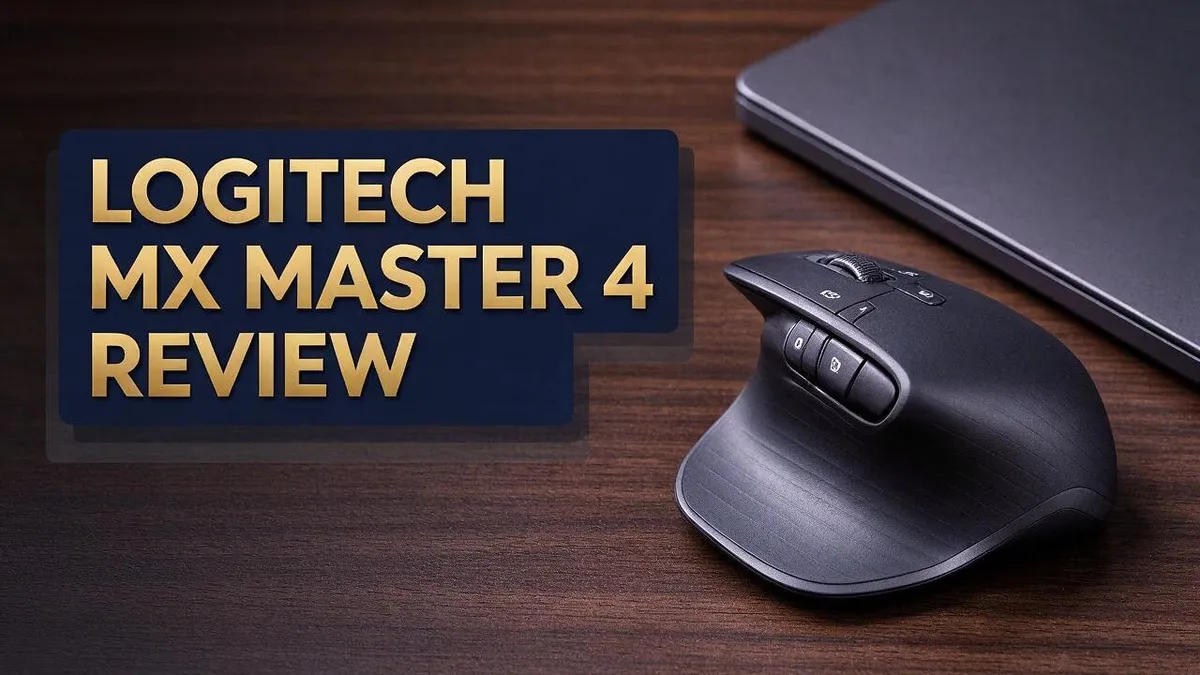
Logitech MX Master 4 Review: Haptics, Scrolling, Comfort and Verdict
Are you looking for a mouse that feels great all day? The Logitech MX Master 4 might be the one. It brings a fresh look and smarter features to a familiar design.
Many people spend hours at a desk. A good mouse can make work feel smoother. This model adds haptic feedback that gives gentle buzzes when you use the controls. The MagSpeed scroll wheel glides fast and stops with precision.
Think about who this mouse fits best. It suits office workers, writers, and creators who want comfort and control. In this review, you will learn about the build, the features, and the downsides. Let’s see if it earns a spot on your desk.
In a Nutshell
-
Build quality stands out. The mouse feels solid and precisely assembled from the first touch. Its button lines look cleaner than those on the older model.
-
Haptic feedback adds a premium touch. The engine gives a subtle pulse that many people find satisfying. It makes scrolling and clicking feel more alive.
-
Scrolling is easier than before. The MagSpeed wheel handles long documents with ease. It also feels smooth when you need precise control. Fast spins get you through pages in seconds.
-
Weight is a real factor. Some users find it heavy or large for their hands. Test it in person if you have smaller hands.
-
It is not built for gaming. This mouse suits office work, editing, and creative tasks. Gamers should look at models like the G502 X PLUS instead.
-
Consider the MX Master 3S too. Many experts see it as the smarter upgrade path. It keeps the core features you likely want. It may also suit you better if you prefer a lighter option.
Design and Build Quality

- Mastered for Mac: With matching Apple finishes, Logi Options+ functions for macOS (1), USB-C charging while...
- Precision you can feel with the Haptic Sense Panel; customizable (1) haptic feedback on specific actions...

Last update on 2026-11-07 / Affiliate links / Images from Amazon Product Advertising API
When you pick up the Logitech MX Master 4, your palm meets a shape that curves up under the hand. This sculpted form helps your hand settle into a natural position.
The thumb rest sits on the left side. It gives your thumb a steady place to land. You can move the mouse without tensing your fingers.
The top surface uses a soft textured finish. Your fingers grip it well, even during long sessions. The coating also hides fingerprints better than glossy designs.
The buttons sit flush with the shell. The edges feel smooth, so nothing catches on your sleeve. The clicks feel firm but quiet, which suits shared offices.
Side buttons fall right where your thumb naturally rests. You can reach them without shifting your grip. This placement keeps your workflow smooth.
Underneath, the mouse uses broad feet. They glide across desks, glass, and mousepads with little friction. Your wrist stays loose as you move across the screen.
Your grip style matters here. Palm grip users often enjoy the full contact. Claw grip users may need a moment to adjust. Fingertip grip users might find the mouse sits a bit high, so try it first if you can.
The left and right sides differ slightly. The right side supports your ring finger and pinky. This helps keep your hand steady during quick clicks.
Material choices also affect how the mouse ages. Light wear tends to show up slowly on the surface. The scroll wheel sits inside a slim frame, so a quick wipe every few weeks keeps it spinning freely.
Desk space matters. A wide body needs more room than a compact mouse. Measure your workspace first so the mouse does not feel cramped. Overall, this design favors people who use a mouse all day and want a shape that fits their hand.
Haptic Feedback and MagSpeed Scrolling
Haptic feedback changes how you know that something happened. Instead of watching the screen for a response, you feel a small pulse in your hand.
This matters most when your eyes stay locked on a spreadsheet, a timeline, or a long draft. You keep your focus where it belongs.
The pulse works like a silent confirmation. It tells you a command landed, so you do not need to check again.
Shared offices benefit from this too. A tactile cue keeps the desk quiet while still giving clear feedback.
MagSpeed scrolling offers two distinct feels. The wheel can spin freely for fast jumps through a page. Then it can shift into a clicked, stepped motion for exact lines.
Switching between these modes feels natural after a few days. Your thumb and finger learn when the wheel will glide and when it will stop.
Your finger also does less work on big scrolls. One flick can carry a page far, so your hand rests more often.
The haptic pulse and the wheel work together. When the wheel changes gears, a light tap lets you feel the shift without looking.
Some people love the free spin, while others prefer the crisp steps. Test both feels at your desk to see which one fits your habits.
Long scrolling sessions can feel tiring for the wrist. Fewer wrist movements may help you stay comfortable across a full workday.
Some users may find the free spin too loose at first. A short practice period helps you control it with precision.
The tactile and scroll features reward patience. Give your hand a few days to adapt, and the controls will start to feel second nature.
Small improvements like these add up over time. Try the wheel for a full day of writing or editing before you decide.
Sensor Accuracy and Tracking
The sensor decides how the cursor moves across your screen. The MX Master 4 offers up to 8,000 DPI. That number shows how far the pointer travels for each inch of hand movement.
Sensor accuracy matters more than most people think. Every small motion should match the pointer on screen. When the sensor lags or skips, even simple tasks feel slow and messy.
Surface choice also shapes tracking. A plain mousepad usually gives the most even response. Glass desks can work well, but a dusty or reflective surface may cause uneven movement.
Higher DPI does not always mean better. Very high settings make the cursor jump when you aim at tiny icons or fine lines in a drawing. Lower settings give more control for detailed work.
Screen size changes the ideal setting. A large monitor or several displays often need a higher value. This helps you avoid stretching your arm across the desk.
A small laptop screen usually works best with a lower value.
Logi Options+ lets you change DPI in small steps. You can save one level for office work and another for creative tasks. You can also assign shortcuts to switch between them quickly.
Lift off behavior matters too. A good sensor stops tracking when you raise the mouse. This lets you reposition your hand without moving the pointer by accident.
Your settings live on your computer because the mouse has no onboard memory. Logi Options+ stores your profile on that machine. Keep the software installed if you want your setup to follow you.
A quick test shows the right setting fast. Move the cursor slowly across a line of text, then draw a small circle. If the pointer matches your hand every time, the setting works for you.
Take a few minutes to test before you settle. Small changes can make a big difference over a long workday.
Top 3 Alternatives
Logitech MX Master 3S

- Logitech MX Master 3S Bluetooth Edition is a Bluetooth only mouse, and does not come with any USB receiver...
- 8K DPI Any-surface tracking: Use MX Master 3S cordless computer mouse to work on any surface - even glass...
Last update on 2026-08-22 / Affiliate links / Images from Amazon Product Advertising API
If you want a comfortable mouse for long workdays, the MX Master 3S is a great pick. Its shape fits the right hand well, so your wrist stays relaxed. The MagSpeed scroll wheel flies through long documents and web pages in seconds.
The clicks are quiet, which helps when you share a room or office. Many people use it for spreadsheets, coding, and photo editing. You can also connect up to three devices and switch between them with one button.
Razer Basilisk V3 Pro

- ICONIC ERGONOMIC FORM WITH 10 1 PROGRAMMABLE BUTTONS: Favored by millions worldwide, the mouse’s signature...
- 13-ZONE CHROMA LIGHTING WITH FULL UNDERGLOW: Customize each zone from over 16.8 million colors and countless...
Last update on 2026-06-09 / Affiliate links / Images from Amazon Product Advertising API
This mouse is built for gamers who want fast and accurate movement. Its high-precision optical sensor tracks every small move you make. You can connect it wirelessly for a smooth setup without messy cables.
Extra buttons sit under your thumb, so you can set shortcuts for quick actions. The buttons feel crisp during long matches. The colorful lighting also adds a fun touch to your desk.
Logitech MX Anywhere 3S

- Logitech MX Anywhere 3S comes with a USB-C charging cable (USB-A to USB-C) only, no USB receiver / dongle.
- Tracks Anywhere, Goes Everywhere: Work on any surface, even glass (1), with MX Anywhere 3S Bluetooth Mouse...
Last update on 2026-11-07 / Affiliate links / Images from Amazon Product Advertising API
Do you like to work from cafes or hotel rooms? The MX Anywhere 3S is small and light, so it slips into any bag. It works well on glass and other tricky surfaces, where many mice struggle.
Quiet clicks and fast scrolling keep your work moving. You can pair it with up to three computers and switch in seconds. The battery charges through USB-C, so one cable can power many of your devices.
Software and Customization
The software is where this mouse truly comes alive. Logi Options+ handles nearly every setting you need. Install it once, and most of your work happens in a few clicks.
Button remapping is the first thing many people change. Each side button can trigger a shortcut, an app switch, or a copy and paste command. You can match the buttons to the tasks you repeat most.
App profiles take this idea further. Logi Options+ can switch settings automatically when you open a design tool, a spreadsheet, or a web browser. Your browser might use the thumb buttons for back and forward. Your editing program might need a zoom shortcut instead.
The gesture button adds another layer. Hold it down, then move the mouse in a direction. Each direction can open a launcher, switch desktops, or start a favorite app.
Easy Switch lets you move between up to three computers. A single press changes the connection. Your settings follow the mouse once you install the software on each machine.
Flow goes a step further. Move the cursor past the screen edge, and it jumps to the other computer. You can also copy text on one machine and paste it on another. This works well for mixed desk setups.
Firmware updates arrive through the same app. Logi Options+ checks for new versions and lets you install them with one click. Keeping the software current helps fix bugs and improve compatibility.
Setup may ask for a Logitech account. Some people prefer to skip that step. Read the permissions carefully before you accept them, especially on shared work computers.
Overall, the software gives you real control. Most people spend about ten minutes setting it up. After that, the mouse fits your workflow instead of the other way around.
Pros and Cons
Pros
- Solid build quality feels sturdy and precise in your hand.
- Clean button lines give the mouse a tidy look on any desk.
- Quiet clicks keep noise low in shared offices.
- Comfortable shape feels right during long work sessions.
- Easier scrolling makes everyday browsing smoother than before.
Cons
- Heavier than many mice, which some users may not enjoy.
- Large frame can feel bulky for people with small hands.
- Not built for gaming, so gamers should look at other models.
- Older model may suit some buyers who want a lighter option.
Who Should Buy It
This mouse fits people who spend most of their day at a computer. Writers, designers, and office workers often benefit the most.
Palm grip users will likely feel at home. The large body supports the whole hand. People with small hands who use a claw grip should test one first.
Students and researchers who juggle many tabs can use this mouse for hours. Moving between sources feels quick and controlled.
Travelers should look elsewhere. The wide frame makes this mouse hard to pack into a small bag. A compact model works better on the road.
Owners of the MX Master 3S may not need to switch. Their current mouse still offers much of the same comfort. Keep it if it still feels good.
People with a laptop only setup should think carefully. A large mouse can feel cramped on a small table or a crowded train seat.
People coming from a basic mouse will notice the biggest change. Everyday tasks feel more polished, and each control feels more purposeful.
Ask yourself one question. Do you spend hours a day with your hand on a mouse? If yes, this model deserves a close look. If not, a simpler option may serve you well.
Price and Value
Value comes from daily use. A mouse you hold for hours each day shapes your comfort and focus. This part looks at what you gain over months, not just during the first afternoon.
Haptic feedback offers a quiet signal. The gentle pulse confirms that a control worked. You can keep your eyes on the screen instead of hunting for the pointer. Over a full workday, that focus adds up.
The mouse suits long sessions best. Writers, designers, and analysts who spend hours in documents will use every feature. Casual users may not need that depth from day to day.
Small time savings add up. Each shortcut or gesture cuts a few seconds from a task. Over a week, those seconds become hours you can spend on real work.
Gamers should look elsewhere. This mouse does not target fast play. Buyers who want a gaming focus can compare the G502 X PLUS or the Razer Viper V4 Pro instead.
Lifetime fit matters more than features. A mouse must match your hand size and grip for years. Test the shape in person when you can. This step helps you avoid regret.
Compare the lineup before deciding. The MX Master 3S sits in the same family. Reading both models side by side shows which changes matter to you.
Think about your daily routine. Count how many hours you spend at a desk. Then picture how often you reach for the mouse. That simple check shows whether the extra size helps you.
Long term comfort beats first impressions. A mouse can feel fine for ten minutes and tire you by noon. Notice how your wrist feels after a full day.
The right choice depends on your habits. Heavy desk users get the most from this mouse. Light or travel focused users may prefer a smaller design.
Your setup decides the final score. Desk size, hand size, and daily tasks all matter. Use them as your guide.
Final Verdict
The Logitech MX Master 4 earns a strong place on a productivity desk. It brings solid build quality and precise assembly. Every part feels deliberate in the hand.
The haptic engine is the star of the show. Its smooth engine makes the mouse feel premium. That sensation sets it apart from many rivals.
Precision also stands out. The sensor reaches up to 8,000 DPI, so cursor movement stays sharp on large monitors. Designers and editors can work with fine control.
Logi Options+ adds real control. You can assign shortcuts to buttons and gestures for each app. Setup takes only a few minutes.
Bluetooth keeps the setup wireless and clean. Pairing takes little effort, so you can start working right away.
Keep one limit in mind. The mouse has no onboard memory. Your custom settings live in Logi Options+, so that software must run on your computer.
Simpler users may feel overwhelmed. The many buttons and gesture options take time to learn. Those who want a basic click and scroll may prefer a simpler setup.
Before you decide, ask yourself three questions. Do you work on a computer most of the day? Does your hand fit a large grip? Do you want deep customization?
Think about how you use the mouse each day. Short tasks need less precision than design work. Match the features to your real habits instead of chasing spec numbers.
Test it first when possible. Try the mouse in your hand before you commit. Comfort is personal, and no spec sheet can measure it fully.
The final take is simple. The MX Master 4 suits people who live in productivity apps all day. It offers refined feel, smart controls, and sharp tracking.
If your daily work fits that picture, this mouse deserves a spot on your desk. It earns a clear recommendation from me.
Frequently Asked Questions
Is the Logitech MX Master 4 quiet enough for shared offices?
Yes, the clicks stay soft. The left and right buttons use quiet switches. Coworkers nearby will notice less noise during calls and focus time. This makes the mouse a good pick for open desks and shared rooms.
Does the scroll wheel help with long documents?
The MagSpeed wheel flies through long pages in seconds. It shifts between fast and precise scrolling on its own. Scrolling through spreadsheets, code, or long reports feels smooth and controlled.
Can I use it with both Windows and Mac?
Yes, it works with both systems. Logi Options+ runs on Windows and macOS. You can pair the mouse with each computer over Bluetooth, so switching between machines stays simple.
Does the shape suit left handed people?
The contoured design fits a right hand best. Left handed users should test it in person first. A poor fit can cause discomfort during long working days, so a quick hands-on check helps.
Can I change how fast the cursor moves?
Yes, you can adjust the sensitivity. The DPI setting is available in the software. Lower settings help with precise design work, while higher settings help you cross large monitors quickly.

DK is a technology expert who specializes in AI tools, software, and tech gadgets. He writes for How to Tech Info, providing detailed reviews and practical guides. DK helps readers discover the best AI applications, navigate new software, and choose the right tech gadgets.


