Cudy BE3600 WR3600 Router Review: Wi-Fi 7 Speed, Range, and Verdict
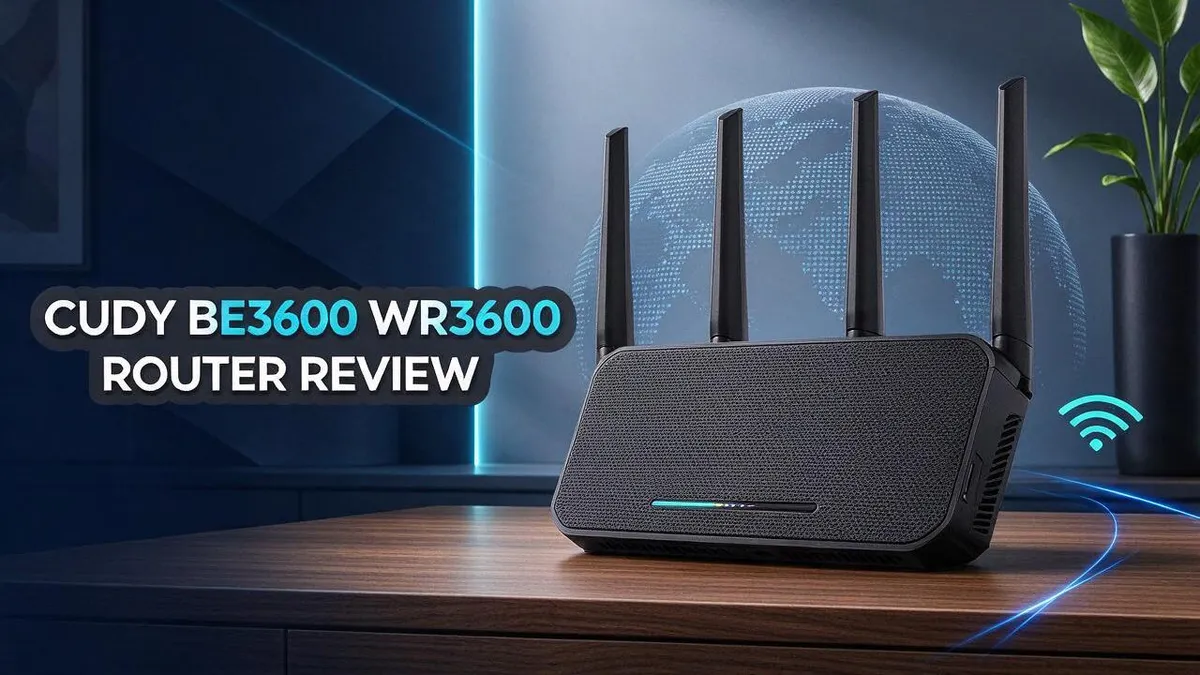
Looking for a faster way to get online at home? The Cudy BE3600 WR3600 router brings Wi-Fi 7 speeds to your space. It helps with smooth streaming, clear video calls, and steady connections across your devices.
This router includes a 2.5G port and a USB port. You can also manage your network with a companion smartphone app. Many users like its solid router software and easy remote control.
Still, not every test went smoothly. One user reported packet loss during online gaming. Real-world range will also vary based on walls and interference. In this review, we explain what really matters so you can decide if this router fits your home.
In a Nutshell
- Solid router software: The firmware feels reliable for daily use. Setup and settings stay simple to manage. Users get a stable base for browsing and streaming.
- Handy companion app: You can manage your network from your phone. Changes still work when you are away from home.
- Fast speeds up close: One roundup test recorded 668 Mbps near the router. Speeds often drop as you move farther away.
- Packet loss concern: One user saw 7 to 15 percent packet loss out of the box. Gamers should test their connection before playing Valorant.
- Mixed ranking in tests: A roundup of Wi-Fi 6 and Wi-Fi 7 routers placed it near the back of the pack. Buyers should compare test results side by side. Results can change with each firmware update.
- Range varies at home: Range figures came from open spaces with little interference. Walls and other devices will shrink coverage in most homes.
Key Features and Hardware

- BE3600 Wi-Fi 7 Speed & Wide Coverage: 4-stream dual-band Wi-Fi 7 delivers up to 2882 Mbps on 5 GHz and...
- 5 Gigabit Ports & Powerful Processor: Features 1 Gigabit WAN and 4 Gigabit LAN ports for wired PCs, gaming...
Last update on 2026-11-06 / Affiliate links / Images from Amazon Product Advertising API
Hardware shapes how your network behaves every day. The Cudy BE3600 WR3600 belongs to a mesh family, so it can team up with other units. This helps when signals fade in far rooms.
Model names can confuse shoppers. Some listings show M3600, while others use BE3600 or WR3600. Check the label on the box so you get the exact unit you researched.
For best results, place the router high and central. Keep it away from thick walls, metal objects, and microwaves. Clear space helps the signal spread evenly.
Wired devices benefit most. Connect a desktop, smart TV, or game console directly. A wired link avoids signal loss and often keeps lag low. This matters for online games and video calls.
Mesh support adds flexibility. You can add more units later to cover larger homes. Keep every unit on the same network name so devices roam smoothly between floors.
Test each room you use. Run a speed test in the spots where you work, relax, or play. Note the results, then move the router or add a unit if one area lags.
Families with many gadgets gain the most. Streaming, video calls, and smart home devices all share one connection. Plan for more devices than you own today.
Update firmware after setup. Open the companion app and check for new versions. Restart the router after each install so changes take effect cleanly.
Hardware sets the stage. Choose the spot, the wired setup, and the mesh plan first. Then your Wi-Fi 7 speeds have a better chance to shine.
Plan for the long term. Hardware that handles today’s traffic may struggle later. Pick a setup with room to grow so upgrades feel simple rather than urgent.
Good placement and clear wiring make setup easier for everyone in the house. Keep cables neat and labeled so troubleshooting takes minutes.
Wi-Fi Speed and Performance
A fast router cannot push data faster than your internet plan allows. Check your plan speed first. Your provider sets the upper limit, so the router only helps your devices reach that limit more reliably.
Your devices matter too. Wi-Fi 7 gains only appear when your phone, laptop, or tablet supports the same standard. Older gadgets connect at slower settings, so the newest features may sit unused.
Speed tests show download numbers, but they hide other issues. Ping and jitter affect video calls and online games more than raw megabits. Check those numbers during busy evenings, when neighbors also use crowded airwaves.
Wi-Fi channels play a big role. Crowded channels slow traffic, especially in apartment buildings. Many apps let you pick a quieter channel or let the router choose one automatically. Try both options and compare results over several days.
Walls change everything. Brick, concrete, and metal weaken signals quickly. A device two rooms away may run at half the speed of one nearby. Measure signal strength on each device, not just the speed.
Background tasks also steal bandwidth. Cloud backups, system updates, and streaming on other screens can slow your main activity. Pause large downloads during important work sessions.
Quality of service settings can help too. Some companion apps let you give video calls or games priority. This keeps one heavy download from slowing down a work meeting. Set these rules once, then review them after a month.
Keep your testing consistent. Use the same device, the same app, and the same time of day each run. Write down the results. Small patterns become clear after a week of notes.
Finally, keep expectations realistic. Real results depend on your home layout, device mix, and internet plan. Speed gains feel best when every part of your setup works together.
Range and Coverage
Range is one of the first things people ask about. Good coverage means fewer dead spots and calmer video calls. Every home has its own layout, so results will differ.
Think about your floor plan before you choose a spot. Count the rooms that need a strong signal. Then list the places where the signal often drops.
Thick materials cause trouble. Brick, concrete, and tiles block radio waves more than drywall does. Metal cabinets, mirrors, and large appliances can also weaken the signal. Keep the router clear of these items when you can.
Doors matter too. A closed door between the router and a bedroom can cut speed. Leave doors open when possible, or place the router in a hallway that connects several rooms.
Homes with two floors need extra planning. Signals spread more easily on the same floor than through ceilings. If the upper floor feels weak, a mesh unit on that level often helps more than moving the main router.
Outdoor spaces are another angle. A patio or garden office may sit beyond the reach of the router. Place a mesh unit near a window that faces the yard, then test the connection there.
Neighbor networks can crowd the air. Apartments and townhouses often have many nearby signals. This crowding can lower your range even when the router sits in a good spot. Try a different spot or a second unit if the speed drops.
Measure coverage with a phone. Walk through your home with a speed test app open. Note the room, the speed, and whether the connection stays stable. Repeat the test at different times of day, since busy evenings can change results.
Set realistic goals for each room. A single router rarely covers a large house perfectly. Plan for an extra mesh unit if the test shows gaps in the far corners.
Top 3 Alternatives
TP-Link Archer BE230

- ...
- ...

Last update on 2026-11-06 / Affiliate links / Images from Amazon Product Advertising API
The TP-Link Archer BE230 suits people who want the newest WiFi 7 speeds without a large budget. It has a BE3600 rating and works well in small homes with a few devices. Setup is quick, and the app guides you through each step.
It handles streaming, video calls, and light gaming with ease. Parents and students will find it handy for daily use. Its compact design fits easily on a shelf or desk.
ASUS RT-BE58U

- Beyond-fast WiFi 7 (802.11be) - WiFi 7 (802.11be) dual-band extendable router boosts speeds up to 3600 Mbps...
- Unleashing Multi-link operation (MLO) for Ultra-Smooth Connectivity - Link to multiple bands at the same time...
Last update on 2026-11-06 / Affiliate links / Images from Amazon Product Advertising API
The ASUS RT-BE58U also uses WiFi 7, but it offers a higher BE5800 rating. That extra capacity helps when many devices share the network at once. Families with smart TVs, tablets, and laptops often notice a smoother connection.
The router supports AiMesh, so you can add more ASUS routers later. This spreads coverage through a bigger home. It also has several wired ports, which work well for desktop computers and game consoles.
ASUS RT-AX86U

- New-generation WiFi 6 - Enjoy ultrafast speeds up to 5700 Mbps with the latest WiFi 6 (802.11ax) and 160MHz...
- Mobile Game Mode - Minimize lag and latency for mobile gaming with just a tap on the ASUS Router app
Last update on 2026-11-06 / Affiliate links / Images from Amazon Product Advertising API
The ASUS RT-AX86U uses WiFi 6 instead of WiFi 7. It still delivers fast speeds for most homes. Gamers often like it because of its 2.5G WAN port and useful gaming features.
Choose this model if you want strong performance and a mature feature set. It can handle busy networks with many devices. Its extra Ethernet ports also let you connect more wired gear without buying a separate switch.
Software and Remote Management
The software side of the Cudy BE3600 deserves a closer look. Many people never open their router settings after setup. That can be a missed chance.
Good software makes daily life easier. The interface offers the core tools most home users need. You can change network names, passwords, and basic security options with little effort.
Start by changing the default admin password. Default logins are widely known, so a unique password protects your network. Write it down somewhere safe.
Remote management adds real value. The companion smartphone app lets you check your network from almost anywhere. You can view connected devices while you are away from home.
This matters when a family member asks for help. You can look at the network from your phone and guide them. There is no need to walk across the house first.
Remote access needs care. Turn on remote features only when you need them. Use a strong account password and keep your app signed in on trusted phones only.
Look for a guest network option in the settings. Visitors can join a separate network with its own password. Your main devices stay private and protected.
The device list shows every gadget connected to your network. An unknown name on that list deserves a quick look.
Menu names can differ between versions, so check each option first.
If speeds drop, a quick restart from the app often clears temporary glitches. Restarts take only a minute. Write down each step you take, so you can track what helps.
Clear names make management easier. Name your router and each device so you recognize them later. A tidy list saves time when problems appear.
Strong software and remote tools give you control. Spend a few minutes in the app each month. Your home network will feel more stable and secure.
Reliability and Gaming Latency
Gaming needs steady connections more than raw speed. Lag often comes from latency, jitter, or packet loss rather than download numbers. These problems matter most in fast shooters like Valorant.
One user reported 7 to 15 percent packet loss right after setup. That report comes from one source, so treat it as a warning, not a rule. It still shows why you should test the router before you rely on it for ranked matches.
Packet loss hurts more than slow speeds. Lost data forces the game to resend or guess your position. You may see rubber banding, sudden freezes, or hit registration problems.
The roundup placed the router near the back of the pack in a budget WiFi 6 versus WiFi 7 comparison. That ranking covers general performance, not gaming results. It suggests you should not expect elite numbers from every test.
Check your own numbers. Open a command prompt and run a ping with a long count to your game server region or a public address such as 8.8.8.8. Look at the loss percentage and the average time.
Wired connections help most. Plug your gaming PC or console into a LAN port, and the router handles less wireless noise. The 2.5G port also helps if your internet plan is fast, since a wired link keeps the path clean from end to end.
Watch for stability over days, not minutes. A router may run fine for an hour, then drop packets after several hours of heavy use. Note any disconnects and record the time. Patterns reveal problems that a single speed test misses.
Heat can also play a part. Keep the unit in open air, away from enclosed cabinets. Overheating can cause slowdowns and random drops, so good airflow supports steady gaming sessions.
Finally, treat the router as one part of the chain. Your game server, ISP line, and device all affect ping. If the router passes every test but lag remains, the problem may sit outside your home.
Pros and Cons
Pros
- Solid software: The router software feels stable and easy to use.
- Remote management: The companion app lets you check your network from almost anywhere.
- Fast close range: Tests reached 668 Mbps near the router.
- Wired speed: The 2.5G port gives your PC or console a fast cable connection.
- Extra USB port: The USB port lets you connect storage or other devices.
Cons
- Packet loss reports: One user saw 7 to 15 percent packet loss right after setup.
- Mixed roundup results: A WiFi 6 versus WiFi 7 roundup placed it near the back of the pack.
- Range varies: Range tests used open space, so your home may show less coverage.
- Model name confusion: Sources list it as M3600, BE3600, or WR3600.
Who Should Buy It
This router suits people who want to try WiFi 7 without a steep learning curve. It fits many typical homes well.
A good fit for small and medium homes. Most families live in a space with several rooms on one level. Smaller spaces often see the best results. This setup works best when your home stays within a moderate size.
Ideal for households with many devices. Phones, laptops, tablets, and smart speakers all compete for signal. A newer standard can help your network handle that crowd.
Great for people who like to tinker. If you enjoy checking settings, this router gives you plenty to explore. You can adjust options over time as your needs change.
Smart for people who test first. Run the router for several days before you depend on it. Watch how it behaves during busy evenings, not just quiet mornings. Real results matter more than first impressions.
Useful for home offices. Video calls depend on a reliable link. Check call quality during working hours before you settle in.
Helpful for mixed device setups. Older gadgets and newer ones can share the same network. Testing each device after setup shows which ones need attention.
Less ideal for large homes. Thick walls and multiple floors can weaken coverage from a single unit. You may need extra nodes to reach every corner.
Not the best pick for anyone who wants zero attention. Some people prefer a router that never needs a look. This model rewards people who like to check in now and then.
Who should look elsewhere? Anyone who needs guaranteed speeds across a large property should compare other options first. Shoppers who want a clear path to WiFi 7 may find this a helpful starting point.
The bottom line. This router suits curious households of moderate size. It works well for people who value control and plan to watch performance closely.
Final Verdict
Our final verdict on the Cudy BE3600 is positive, with a few caveats. It delivers a modern WiFi 7 experience without demanding expert skills. Still, the router rewards careful testing before you rely on it.
The real question is your current setup. If your internet plan is slow, a new router will not fix that. Check your internet speed first. Then decide whether this upgrade makes sense.
Think about your devices too. Older phones and laptops may not use WiFi 7 at all. In that case, you still benefit from better stability and newer security standards. Expect gains that feel steady rather than dramatic.
Placement matters more than people expect. Put the router in a central spot, away from thick walls and metal objects. Keep it off the floor. A small change in position can lift your coverage across the whole home.
Gamers should take extra care. Test your ping and packet loss before any serious match. Compare results with a cable test to see where problems start. Only then should you trust the network for ranked play.
Think about your exit plan. Buy from a seller with an easy return window. That gives you room to test the router properly. If problems appear, you can switch back without stress.
Keep your expectations realistic. Lab numbers and open space tests look great. Walls, neighbors, and busy channels will shape your results. Judge the router by your own rooms.
Overall, we recommend this router to people who value a clear plan. Set it up, test it closely, and watch how it behaves over several days. If it passes those checks, it can serve you well for years.
In short, this router earns a place on your shortlist. Move forward with a plan, and you will know quickly whether it fits.
Frequently Asked Questions
Can this router work in a larger home?
It works best in small and medium homes. Thick walls can block signal in bigger spaces. Test the coverage in the rooms you use most before you settle in.
Do I need new devices to get the most from it?
Older gadgets can still connect. Newer devices with WiFi 7 support get the most benefit. Check your laptop or phone specs first.
How do I set it up the first time?
Use the companion app for a simple start. Follow the on-screen prompts, then install any firmware update the app offers. Create a strong password right away.
What is a good way to test gaming performance?
Run a ping test to your game server for about ten minutes. Compare those results with your old router. This shows you real numbers instead of guessing.
What should I do if my speeds drop later?
Restart your modem first, then restart the router. Wait a few minutes between each step. If speeds stay slow, check your internet plan with your provider.

DK is a technology expert who specializes in AI tools, software, and tech gadgets. He writes for How to Tech Info, providing detailed reviews and practical guides. DK helps readers discover the best AI applications, navigate new software, and choose the right tech gadgets.