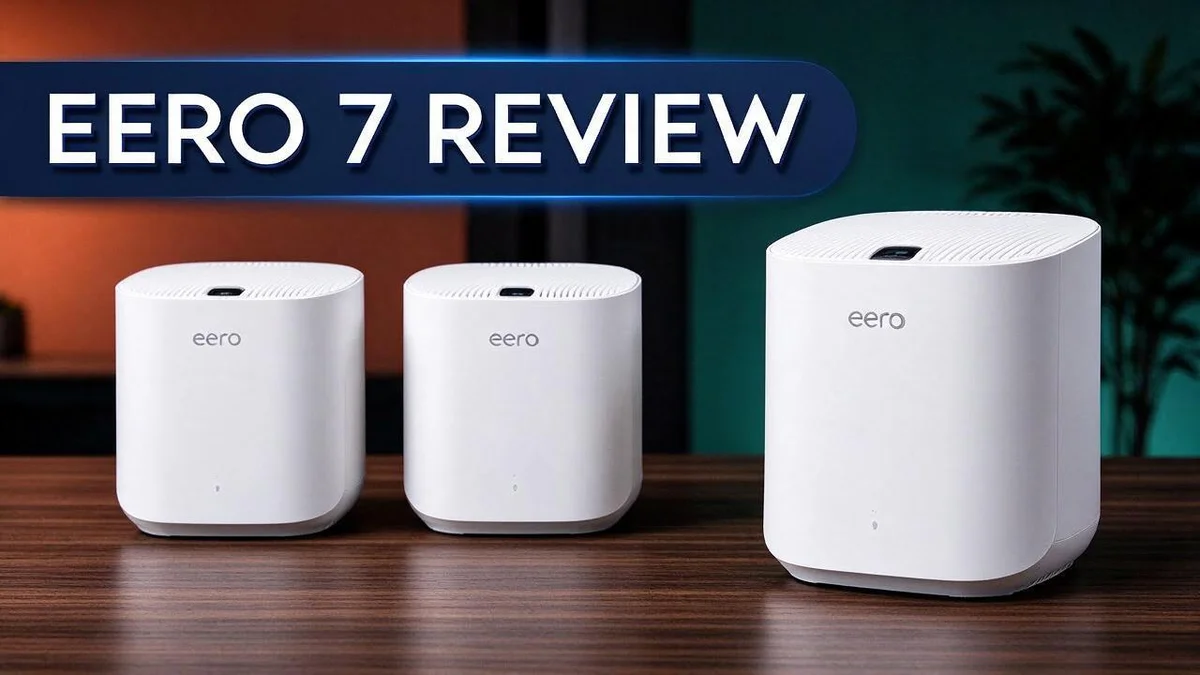
Eero 7 Review: Wi-Fi 7 Mesh Coverage, Speed, and Verdict
Slow WiFi can ruin a good day. Dead zones, buffering videos, and dropped video calls push many people to find a better network. The Eero 7 promises a simple fix for everyday homes.
The Eero 7 is a dual band mesh router built on the new WiFi 7 standard. It carries a rating of up to 1.8 Gbps and targets apartments, condos, and single family homes with moderate needs.
A reviewer found it strong at covering large spaces. Still, it is not the fastest mesh system on the market.
One user also noted that the top speed was more than their 700 Mbps internet plan could use. So, is it the right pick?
This review breaks down real performance, setup, and how it compares with rivals like the eero Max 7 and ASUS ZenWiFi BT10. Keep reading to see if this router fits your space.
In a Nutshell
-
Best fit: The Eero 7 suits apartments, condos, and single family homes. It works well for moderate WiFi needs like streaming, video calls, and web browsing.
-
Not the fastest option: A March 2025 review found that some other mesh systems deliver higher speeds. Shoppers who want peak performance should compare models before they decide.
-
Step up with the eero Pro 7: This model adds tri band support, 5 Gbps ports, and two Ethernet ports per unit. It fits households with many connected devices.
-
Wired backhaul with the eero Max 7: This model uses 10 gigabit wired backhaul. One reviewer measured it about 50% faster than eero 6+, but called it overkill for gigabit plans.
-
Other rivals to consider: The ASUS ZenWiFi BT10 offers tri band design with 10 Gbps wired or MLO options. The Deco BE63 and UniFi UDR7 or UX7 also compete in this space.
-
Quick verdict: Choose the Eero 7 for simple, dependable coverage in a typical home. Pick a higher tier model if you run a large network or need top speeds.
Coverage and Range

- OUR MOST AFFORDABLE WI-FI 7 ROUTER - eero 7 helps you future-proof your network and make the most of Wi-Fi...
- SAY GOODBYE TO DEAD SPOTS - eero 7 minimizes network disruptions to help ensure you have fast, reliable wifi...

Last update on 2026-11-05 / Affiliate links / Images from Amazon Product Advertising API
Coverage decides how well your WiFi reaches each room. Many people buy a single unit and hope for the best. The Eero 7 spreads signal through a network of nodes. Each node extends the connection to places a single router cannot reach.
Start with your home layout. Thick walls made of brick or concrete block weaken signals more than drywall. Floors and metal appliances can also block the path.
Place the main unit near your modem. This spot gives the strongest link to the internet. Then set the second node about halfway between the main unit and the weak area.
Good placement matters more than extra devices. Put nodes in open spaces, not inside closets or cabinets. Keep them off the floor and away from microwave ovens.
Keep node hops short. Nodes often talk to each other through the air. Each extra hop can reduce speed. Keep nodes within a clear range of each other for the best flow.
Watch for hidden dead zones. Signal can drop near basements, garages, and back corners. Walk through these areas with your phone and check the connection. If speeds dip, move a node closer.
Count the nodes you need. Most apartments and single level homes often need one or two units. Larger houses with several floors may need an extra node on each level.
Plan for busy networks. Smart TVs, doorbells, laptops, and phones all share the same network. Strong coverage keeps every device connected in the rooms you use most.
Sketch your floor plan first. Mark the rooms where you need strong signal. Note the walls and floors between them. This quick map shows where each node should sit and avoids guesswork.
Expect steady results in a typical home. With smart placement, the Eero 7 covers most spaces well. Test again after every change to see the difference. Give it a little planning, and your WiFi will reach the rooms that matter most.
Speed and Real-World Performance
Speed on a box rarely matches speed in a home.
The Eero 7 carries a rating of up to 1.8 Gbps. That number reflects ideal lab conditions.
Your daily results depend on your devices, your walls, and your internet plan.
Your devices set the limit.
A phone or laptop that supports only older WiFi standards cannot reach top speeds. Even a fast router must work within what each gadget can handle. Devices with WiFi 7 support get the most benefit.
Test with a wired connection first.
Plug a laptop directly into one Eero unit with an Ethernet cable. Run a speed test there. This result shows what your internet line delivers before WiFi slows it down.
Wired backhaul keeps speeds steady.
When a node connects to the main unit through the air, it shares bandwidth with your devices. If your home has Ethernet cable runs, linking nodes by wire can help distant rooms keep higher speeds.
Latency matters as much as speed.
Video calls and online games need quick response times. A steady connection often feels better than a peak number. Check ping results in the rooms where you game or work.
Test at different times.
Evening traffic from neighbors and family members can slow everything down. Run tests in the morning and at night. Compare the results to spot patterns in your network.
Think about upload speeds too.
Cloud backups and video uploads depend on the upload capacity from your internet provider. The router cannot raise that limit. Check your plan details before you judge the results.
Keep firmware current.
Updates can improve stability and performance over time. The Eero app installs most updates automatically. Restart the system once a month to clear minor glitches.
Expect strong everyday results.
Streaming, browsing, and video calls run smoothly for most households. Heavy gaming or large file transfers may benefit from a wired link. The Eero 7 handles typical demands well.
Setup and App Management
Setting up the Eero 7 takes only a few minutes. Download the eero app on your phone first. Create an account with your email address or phone number. Then follow the steps on the screen.
Plug the main unit into power and connect it to your modem. Wait until the light turns solid white. The app then guides you through naming your network and creating a strong password. Write your password down in a safe place.
Next, add your other nodes one at a time. Open the app and tap the option to add a new eero. Place each unit in its planned spot before you plug it in. The app confirms when each node joins the network.
The app gives you a clear view of your network. You can see every device that connects to your WiFi. You can rename devices so they are easy to recognize. This helps you spot unknown devices fast.
Software updates happen on their own. The system checks for new firmware and installs it in the background. You do not need to download files or visit a website. Keep automatic updates turned on.
The app also controls your guest network. Visitors can use your internet without seeing your personal devices. You can share a guest password whenever friends come over. Change it later for extra privacy.
Parental controls and device pauses live in the app too. You can pause internet access for a child’s tablet at bedtime. Schedules let you set quiet hours for the whole household. These tools help busy families stay in control.
Review your settings once a month. Check your network name, password, and update status. A quick check keeps your WiFi organized and secure. Your eero system stays current without extra effort. Small habits make a big difference over time.
Top 3 Alternatives
TP-Link Deco XE75

- WiFi 6E Tri-Band Mesh WiFi – Cover up to 7,200 Sq.Ft with next-gen seamless WiFi and make dead zones and...
- Brand-New 6 GHz Band – Experience the latest frequency of WiFi, eliminating interference from all legacy...
Last update on 2026-11-05 / Affiliate links / Images from Amazon Product Advertising API
The TP-Link Deco XE75 is a Wi-Fi 6E mesh system. It uses a tri-band design, so each device gets more room to breathe.
Families with many streaming devices often notice the difference. Setup takes only a few minutes in the Deco app, which guides you step by step.
Netgear Orbi RBK753

Last update on 2026-11-05 / Affiliate links / Images from Amazon Product Advertising API
The Netgear Orbi RBK753 is a Wi-Fi 6 mesh kit with a dedicated backhaul. The satellite talks to the router on its own channel, so speeds stay steady.
Large homes with thick walls benefit most from this setup. Each unit also has Ethernet ports, which helps you connect a gaming console or desktop by cable.
ASUS ZenWiFi XT8

- Banish WiFi Dead Zone—Tri-band mesh WiFi system with unique antenna placement delivers strong WiFi to every...
- Next-Gen Wi-Fi 6 Technology— With OFDMA and MU-MIMO, ZenWiFi AX enables more efficient, stable, and faster...
Last update on 2026-11-05 / Affiliate links / Images from Amazon Product Advertising API
The ASUS ZenWiFi XT8 is a Wi-Fi 6 mesh system that focuses on security. It includes built-in protection that guards your network from many common threats.
Parental controls and device tracking live inside the ASUS app. This makes it a good pick for people who want useful features without complex settings.
Compatibility with Internet Plans
Your internet plan sets the limit for your whole home network. The Eero 7 can only deliver the speed your provider sends into the house. Check your plan speed before you buy.
Many homes run plans near 700 Mbps. For these households, the Eero 7 rating of 1.8 Gbps goes unused. One user found that the extra capacity was more than their connection could ever use.
Gigabit plans work differently. A gigabit plan can reach close to 1,000 Mbps, so the Eero 7 has enough room to handle it. Your modem must also support that speed, or the router cannot help.
Look closely at the connection between your modem and the main unit. Use a cable and port rated for your plan speed. An older cable can slow traffic before it reaches your devices.
Homes with faster fiber plans may need more power. The eero Pro 7 offers 5 Gbps ports, which suits plans above gigabit. The ASUS ZenWiFi BT10 offers 10 Gbps wired connections for very fast fiber lines.
The eero Max 7 is another choice. One reviewer called it overkill for gigabit plans. However, it measured about 50 percent better than the eero 6+. Pick it only if your plan and devices justify the step up.
Ask your provider which speed tier you have. Plans often change over time. Confirm the number on your bill or account page so you do not guess about your needs.
Match the router to your plan, not to the biggest number on the box. A home with a 300 Mbps plan and a few streaming devices fits the Eero 7 well. The right tier keeps your setup simple and effective.
Value for Money
Start with your daily habits. A family that streams movies and joins video calls has different needs than a couple that mostly browses. Honest answers make your choice much clearer.
Count your devices and rooms. Phones, tablets, laptops, and smart TVs add up fast. The Eero 7 suits apartments, condos, and detached houses with moderate needs.
Larger or multi level layouts may call for a closer look.
Check the extra ports. If you plan to connect several devices by cable, higher models offer more wired options. The eero Pro 7 includes two Ethernet ports per unit. If you rarely use cables, the Eero 7 may suit you well.
Compare competitors by feature. The ASUS ZenWiFi BT10 offers three bands and 10 Gbps wired options. The Deco BE63 and UniFi models also compete in this space. Each one serves a different home style.
Plan for new gadgets. Smart home devices arrive every year. A system with room to grow keeps you connected longer.
Count the units you need. Your floor plan decides how many nodes you add. Extra units reach distant rooms. Each one still needs a clear path to the main unit.
Read recent reviews carefully. Newer reviews show how the system performs today. One reviewer praised its strength in large spaces. Another noted that it is not the fastest mesh system available. Both views help you decide.
Test before you commit. A flexible return window lets you try the system in your own home. Walk through each room, run a speed test, and decide with confidence.
Choose what fits your life. The right system meets your needs today and stays useful tomorrow. Focus on your home, your devices, and your habits. That approach leads to the most satisfying setup.
Pros and Cons
Pros
- It covers large spaces well, according to one reviewer.
- It suits apartments, condos, and single-family homes.
- It brings WiFi 7 support to a home network.
- Its rating of up to 1.8 Gbps looks strong on paper.
- It fits households with moderate WiFi needs.
Cons
- It is not the fastest mesh WiFi system on the market.
- The 1.8 Gbps rating may exceed what some homes can use.
- It uses two bands, while some rivals offer three bands.
- Higher models like the eero Pro 7 offer more wired ports.
Who Should Buy It
This router suits people who want a simple setup. It works well for anyone who wants steady WiFi without learning complex settings.
Renters often make a good match. A small mesh kit can travel with you when you move, so you avoid setup work each time.
First time mesh buyers also benefit. The app handles most tasks in the background, so you need little technical knowledge.
Households with light to moderate use will feel at home. Browsing, email, music, and occasional video calls run smoothly on this system.
Small households with mixed habits can also rely on it. Each person can join the network without much effort.
Older adults and less confident users often prefer clear controls. A short guided setup helps them feel in charge.
Remote workers can also use it for daily tasks. Email, documents, and video meetings usually run well on this system if the speed test looks good.
Who might skip it? Gamers who chase the lowest possible ping may prefer a higher tier model. People who move large files between computers daily also need more capacity. Heavy workloads can strain a basic setup.
Run a quick speed check first. Test your current connection at several times of day, since slow evenings can hide your true speed.
Check your walls too. Thick plaster, brick, or metal framing can weaken signals, so plan node spots with care.
Test your upload speed too. Video calls and cloud backups depend on upload strength, so check that number before you commit.
Think about how long you plan to stay put. A short lease or a planned move can change which system makes sense.
Anyone who wants a simple choice can start here. Read the return policy, so you can test the system in your own home.
In short, this router fits everyday homes with clear needs. Pick a stronger model if your home demands more.
Final Verdict
The eero 7 earns a strong spot on the shortlist for most homes. It handles daily browsing, streaming, and video calls with ease.
Its biggest strength is simple setup and steady coverage in standard spaces. Most people get it running in a short time.
Still, it is not the fastest mesh system you can buy. Power users should compare higher tiers before they commit.
Keep the up to 1.8 Gbps rating in perspective. It shows a best case number, and your real speed depends on your plan, router placement, and building materials.
Think of this verdict as a starting point. Your own habits, home size, and internet plan will confirm whether the eero 7 fits.
Setup is only the first step. Place the main unit near your modem and check coverage in each room you use most.
Its strength lies in consistency, not raw speed. Steady performance across rooms often matters more than peak numbers during a single test.
Who should buy it? Pick it if you want reliable WiFi without a steep learning curve. It works well for people who want a dependable network with little fuss.
Who should look elsewhere? Households that plan a big upgrade in the next year may prefer a higher tier from the start.
Look at the long game too. A simple mesh kit can grow with your home, so you may add units later instead of replacing the whole system.
Most buyers will feel satisfied with this system. It delivers dependable service for everyday use, which is what most homes need most of the time.
Finally, match the choice to your real needs, not the highest number on paper. A calm, steady connection beats a flashy spec you never use.
Make the final call with confidence. Pick the model that fits your daily life today and still makes sense next year.
In short, the eero 7 suits everyday homes with moderate needs. Choose it when you want simple setup and dependable coverage.
Frequently Asked Questions
Where should I place my eero 7 for the best coverage?
Place the main unit in a central spot with open space around it. Keep it away from thick walls and metal objects. This small step helps the signal reach more rooms.
How many eero 7 units do I need?
Most small homes work well with one or two units. Larger homes with several floors may need more. Start with a single unit and add nodes only where the signal feels weak.
Will older devices work with the eero 7?
Yes, older phones, laptops, and tablets connect without trouble. They use older WiFi standards, so they simply run at lower speeds. Newer devices get the most benefit from WiFi 7 support.
Should I choose a higher eero model instead?
Pick the eero Pro 7 if you need more wired ports in each unit. Choose the eero Max 7 if you want faster wired backhaul for heavy daily use. Compare your daily habits with each model before you decide.

DK is a technology expert who specializes in AI tools, software, and tech gadgets. He writes for How to Tech Info, providing detailed reviews and practical guides. DK helps readers discover the best AI applications, navigate new software, and choose the right tech gadgets.