
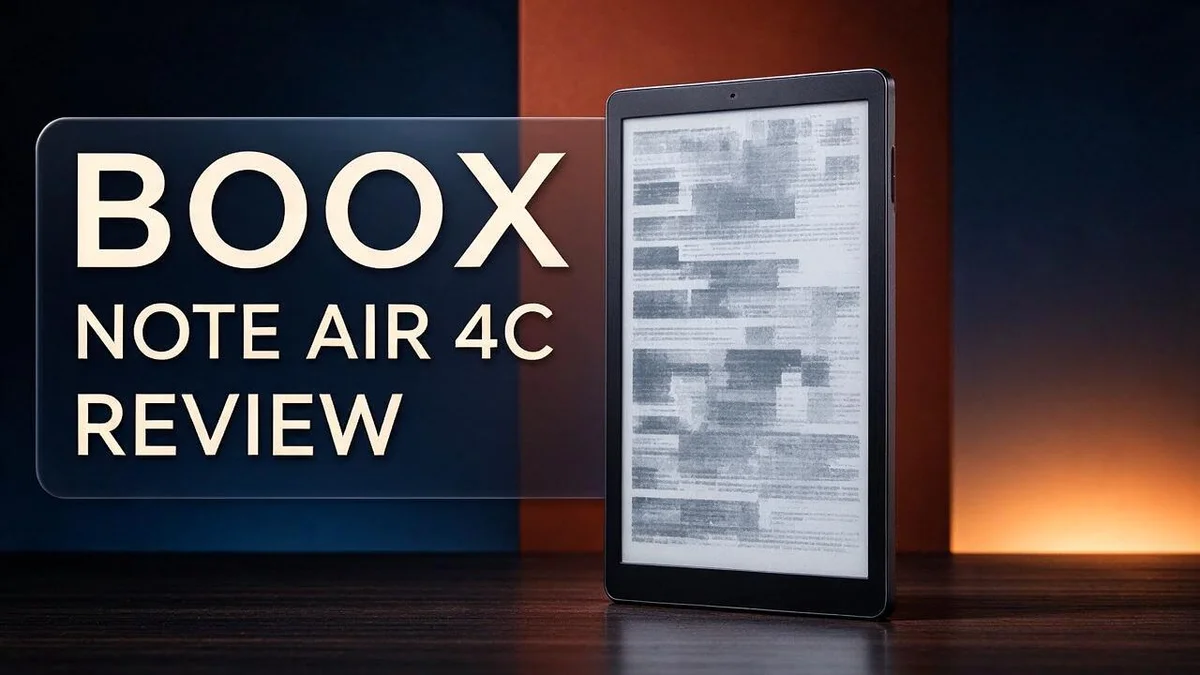
Boox Note Air 4C Review: Color E Ink Tablet for Reading, Note-Taking and Multitasking
Are you looking for an e-reader that feels like paper but also shows color? The Boox Note Air 4C could be the device you need. It packs a 10.3 inch Kaleido 3 color E Ink display into a premium, attractive body.
Paper-like screens feel gentle on the eyes. This tablet shows up to 4,096 colors, so your highlights and sketches stand out on the page. Reading feels fresh and fun.
Under the hood, you get Android 13, 6GB of memory, and an 8-core processor. Many users say it feels snappy when they switch between apps. That speed helps when you read, take notes, and multitask all day.
Every device has its strengths and weak spots. In this review, we look at how the Note Air 4C performs in daily use. We also compare it with close rivals so you can decide if it fits your needs.
In a Nutshell
-
Color display: The 10.3 inch Kaleido 3 screen shows 4,096 colors. Highlights, sketches, and marked up pages all stand out. Charts and maps also become easier to read at a glance.
-
Smooth writing surface: Carta 1200 glass sits under a flat cover lens. The finish feels polished, and the body looks premium in hand.
-
Quick responses: The eight core processor reportedly runs about 50 percent faster than earlier models. Page turns and menus respond with ease, and multitasking feels smoother.
-
Work and play: Reading, note taking, and multitasking all fit this device. One tablet can cover a full study session or a busy workday.
-
Reliability check: One user reports frequent screen failures in a community thread. Read recent reviews and check the warranty details before you commit.
-
Other options: The Note Air 3C is the predecessor. The Boox Go 10.3 Gen 2, Boox Note Max, and Bigme B1051C also compete for your attention.
Display and Reading Experience

- Screen: 10.3" Kaleido 3 (4,096 colors) glass screen with flat cover-lens. Resolution: B/W: 2480 x...
- OS: Android 16. Document Formats: PDF, CAJ, DJVU, CBR, CBZ, EPUB, EPUB3, AZW3, MOBI, TXT, DOC, DOCX, FB2, CHM...
Last update on 2026-11-06 / Affiliate links / Images from Amazon Product Advertising API
Reading on this screen feels calm from the first page. The large canvas suits long chapters, dense PDFs, and textbooks with small print.
Text stays sharp and easy to follow. Words look clean at most font sizes. You can adjust the text size to keep lines comfortable for your eyes.
Color adds a new layer to reading. Comics, magazines, and illustrated guides look more lively than on a black-and-white reader. Photos and charts also help you understand the content faster.
Color pages look a little softer than what you see on a phone or tablet. Colors appear muted, so bright images may not pop as much. Keep that in mind if you read mostly photo-heavy content.
Fast scrolling needs patience. Many E Ink screens leave faint trails after quick page turns. Give the screen a moment to refresh, and the text settles into place.
Outdoor reading works well. The screen does not glow like a tablet. Sunlight does not wash out the text as much, so you can read near a window or on a park bench.
Night reading takes a little more thought. Test the brightness before a late session. Find a level that feels gentle on your eyes, and adjust it whenever the room lighting changes.
Who benefits most? Students, note takers, and paper lovers will feel at home here. Readers who only want plain novels may find a black-and-white device just as satisfying.
Try a few pages in person if you can. Hold the device, flip through a sample document, and notice how your eyes feel after five minutes. That quick test will tell you more than any spec sheet can.
Color E Ink for Notes and Drawing
Taking notes on color E Ink feels different. Color gives your notes more room to breathe.
You can mark key ideas, questions, and reminders in separate shades. Your eyes then find the important parts fast.
This helps most during exam prep. Flip through a page and spot the main points at a glance.
Drawing is where the color screen really shines. Sketches, doodles, and quick diagrams gain depth when you add tones.
Shading a rough idea takes only a few strokes. You can test a palette before you commit to a final version.
Think of this device as a sketchbook rather than a canvas for bold paintings. Soft tones suit quick studies and everyday ideas.
Diagrams benefit the most. Flowcharts, mind maps, and labeled charts stay clear when each branch has its own shade.
Colors act as signposts. You can follow a train of thought without rereading every line.
Handwriting also takes on a new look. Ink in blue or red can make your own words feel more personal.
Many people use a simple code. Blue might mark definitions, while red flags deadlines.
Good organization still matters most. Color does not replace a clear plan. Decide what each shade means before you start a new notebook.
Keep it simple. Use three or four colors at most. Too many shades can turn a page into visual noise.
Try a test page first. Draw a small chart and check how the shades look before you fill a full notebook.
Save a colorful page and share it with a classmate or teammate. Your notes can finally show the colors of your own thinking.
Performance and Multitasking
Multitasking on this device feels different from a phone or tablet. Slow and steady wins here. Plan your work before you switch screens.
Most people jump between apps every few minutes. On an E Ink screen, that habit can slow you down. Try grouping similar tasks instead.
Start with one document and read it from top to bottom. Then open your notes and write a short summary before moving on. This simple routine keeps your thoughts clear.
Keep your library tidy with folders for each class or project. Clear file names help you find documents in seconds. A little order saves a lot of time.
Cloud sync is another helpful companion. Save your work often so nothing gets lost when you switch files. Regular backups keep your notes safe.
The stylus makes it easy to move from reading to marking. Underline a key line, then write a reply in the margin. Your hand stays in motion, and your ideas stay connected.
Busy days call for lighter workloads. Reading a few chapters and sketching a mind map suits this screen well. Heavy file sharing may test your patience, so plan extra time.
Use the device as a focus tool. Turn off extra alerts before you start a session. Fewer interruptions mean you finish tasks faster and with less stress.
Split your day into short blocks. Work for twenty minutes, then take a short break. This rhythm keeps your eyes fresh and your mind sharp.
Label your pages as you go. Use simple tags like Idea, Question, or Review. Later, you can scan these tags and find key points fast.
Test your setup before a big project. Open your usual files, switch between them, and see how it feels. Small trials reveal what works best for you.
Overall, everyday multitasking feels smooth and manageable. It rewards focus more than speed. Go slow, group your tasks, and your work will flow.
Top 3 Alternatives
reMarkable Paper Pro

- THE ULTIMATE PAPER TABLET – For the first time on a reMarkable paper tablet, you can write, sketch, and read...
- WHAT’S IN THE BOX – You’ll find reMarkable Paper Pro, a digital notebook for unprecedented paper-like...
Last update on 2026-08-16 / Affiliate links / Images from Amazon Product Advertising API
The reMarkable Paper Pro suits people who write a lot by hand. Its large screen feels close to real paper. Pen strokes look smooth and natural.
The screen uses E Ink, so it stays easy on the eyes. You can take handwritten notes, sketch ideas, and sort files into folders. Battery life can last for weeks with regular use.
Many writers say the feel of the pen makes writing enjoyable. It works well for students and professionals. Meetings, lectures, and planning sessions feel simpler with one tidy device.
Kindle Scribe

- Our most advanced Kindle Scribe – Features an 11” Colorsoft display with front light, built-in notebook...
- Bring ideas to life in color – The custom-built Colorsoft display delivers high-contrast, paper-like color...

Last update on 2026-08-22 / Affiliate links / Images from Amazon Product Advertising API
The Kindle Scribe fits readers who also like to take notes. It combines a reading screen with a pen for writing in the margins. You can read books and annotate documents in the same place.
Many people use it for daily journaling and quick task lists. Your notes can be sent to your phone or email. This keeps your ideas close wherever you go.
The reading experience stays comfortable for long sessions. Its clean layout helps you stay focused. Reading and writing feel connected, which makes study time more productive.
Boox Go 10.3

- Select Refresh Mode to reduce ghosting: HD Mode (System Default): For reading books and other static content...
- Screen: 10.3" HD ePaper glass screen with flat cover-lens Resolution: 2480x1860 (300 ppi) Touch: BOOX InkSense...
Last update on 2026-11-06 / Affiliate links / Images from Amazon Product Advertising API
The Boox Go 10.3 offers a bigger screen at a comfortable size. It runs on Android, so you can install many note apps. Handwriting feels natural, and page turns are quick.
This model suits people who want flexibility. You can read, write, and browse in one device. Its large canvas helps with diagrams, workbooks, and long notes.
Its Android base also gives you more app choices over time. Users who need extra room for sketches will appreciate the space. It makes a practical choice for creative work and study.
Design and Build Quality
The Boox Note Air 4C feels solid from the moment you pick it up. Its frame looks sleek and clean. Many people see it as a premium tool for daily work.
The flat cover lens makes a real difference. The Carta 1200 glass sits level with the frame. Dust and crumbs have fewer places to hide. Wiping the screen takes only a few seconds.
Holding it for long sessions feels natural. The layout keeps your grip relaxed while you read or write. Long reading sessions feel comfortable.
The 10.3 inch screen fills most of the front. Thin edges make the display the clear focus. The bezels look even and tidy, so the device feels balanced. Less frame means more space for your pages.
Everyday handling feels confident, not fragile. The materials give the device a sturdy presence in your bag. Quality shows in the small details.
Some users raise concerns about reliability. One user reports frequent screen failures when comparing this model with the Note Air 2.
That is one report, so it does not prove a pattern. Still, check the warranty terms and test the unit before you commit.
When you compare it with rivals, hold each model yourself. The Boox Note Max, Boox Go 10.3, and reMarkable all feel different in the hand.
Desk setup matters too. A flat, stable surface helps the device sit well. Many users prop it on a stand or pair it with a case. A case also guards the glass from scratches.
Good design also supports your focus. A clean frame keeps attention on the page, not the device. Overall, the Note Air 4C blends sturdy materials with a clean look. It suits students and professionals who handle the device every day.
Ease of Use and Software
The Boox Note Air 4C runs on Android 13. Many people already know this system from their phones. That familiarity makes the first day feel easy.
Setup takes only a few minutes. You sign in, choose your language, and join a wireless network. Most steps need just a tap or two.
The processor keeps menus moving quickly. Opening a page or switching screens feels quick and smooth, which keeps your focus on the work.
Memory plays a big role here. With 6GB of memory, several apps can stay open at once. Switching between them rarely causes a delay.
A paper style screen does not behave like a phone screen. Menus may need a moment to refresh, so patience helps.
Learning the layout takes a short time. Common actions sit in easy spots, and the gestures feel natural after a few sessions.
Settings give you control over how the screen behaves. You can adjust brightness and other display options to suit your eyes.
App choice shapes the experience. Check that your favorite tools run well before you rely on them. Try your key apps early so you avoid surprises later.
Good software support also builds trust. Helpful guides and clear menus make daily use less stressful. Trust grows when the device behaves the same way each time.
Software updates matter too. Keeping the system current helps fix bugs and improve stability. Check for updates on a regular schedule.
Over time, you learn which settings matter most. Many readers set a favorite layout once and keep it. That saves effort every day.
Some software quirks may appear during early use. Restarting the device often clears small glitches. Keep notes on any issues you spot, so you can share them with support.
Overall, the software feels familiar and fast. For most readers, the learning curve stays short and the daily flow stays smooth.
Pros and Cons
Pros
– Color E Ink adds helpful color to your notes and highlights.
– The Kaleido 3 screen shows 4,096 colors for reading and marking.
– One device handles reading, note taking, and quick multitasking.
– Carta 1200 glass gives pages a paper like look.
Cons
– The color screen is the main difference from the black and white model.
– Readers who only need plain black and white pages may not need the color upgrade.
– Rivals like Boox Note Max and reMarkable offer other options to compare.
Who Should Buy It
Students who color code their notes often gain the most from this device. Pink highlights can mark definitions, while blue can mark questions. Review sessions feel faster and more organized.
Students can also keep lecture slides, textbook chapters, and handwritten pages together. That saves space in a crowded backpack. Fewer loose papers means less searching before exams.
Teachers and tutors may find it helpful for marking work. Colored comments stand out on the page. Students can spot feedback quickly without squinting at faint pencil marks.
Readers of magazines and illustrated books also benefit from color. Photos, charts, and maps keep their tones on the screen. Plain black and white pages lose that detail.
Frequent travelers may appreciate the all in one approach. One device can replace a notebook, a reader, and a pocket planner. Lighter bags make long trips easier.
People who read in bright rooms or outdoors often prefer E Ink. The screen does not use a harsh backlight. Eyes may feel less tired after long reading sessions.
Writers and planners can sketch diagrams in color. Mind maps and project timelines look clearer when each idea has its own shade. Such layouts help big ideas stay organized.
Readers who prefer paper but want digital storage may find a good match. Notes stay easy to store and find. The feel of writing stays close to the page.
Buyers should start with their habits. Think about how often you annotate, read, or work with color. Then compare those needs with the device features before you decide.
Anyone who wants a focused tool should consider this device seriously. The simple layout and fewer distractions help you stay on task. That mix suits people who dislike endless app feeds.
Final Verdict
The Boox Note Air 4C earns a strong spot on the shortlist for readers who want color on an E Ink screen. It feels fast, looks premium, and handles reading and writing with ease.
Still, one concern deserves attention. A user reports frequent screen failures in a comparison thread. This does not mean every unit will fail. However, it does mean buyers should check warranty and return options first. Watch for early issues during the first weeks.
The reported 50 percent speed gain over earlier models stands out. A quicker system helps when you switch between notes and reading material often.
Another angle is focus. An E Ink screen does not glow like a phone. Many readers find this helps them stay focused for longer sessions. Color tones look softer than on a tablet, so set expectations early.
Compared with the predecessor, the Note Air 4C brings a faster processor and updated hardware. Current owners of the Boox Note Air 3C may find the upgrade modest. Think about your daily needs before you switch.
Rival devices still deserve a look. The Boox Note Max, Bigme B1051C, and reMarkable each offer a different feel. Each one serves a slightly different reader. The Boox Go 10.3 Gen 2 suits readers who mainly read.
Our final verdict: the Note Air 4C suits people who value color notes, paper like reading, and one device for daily tasks. It is a strong pick for focused, colorful note work.
Long term value depends on how you use the device. Heavy note takers may enjoy the color features every day. Light readers may find a simpler model more than enough.
Before you decide, check recent user reports and the return policy. Test the screen in person if a store offers a demo. A short trial period can protect you from surprises. Keep your receipt and warranty papers safe.
Frequently Asked Questions
Does the Boox Note Air 4C run regular apps?
Yes, it runs on Android 13, so many common reading and note apps can work on it. This gives you more choices than a single built-in notebook app. Check app compatibility before you rely on a specific tool for work or school.
How can I check the screen when it arrives?
Only one user in the research reports frequent screen failures, so this issue seems rare. Still, test the display right away. Open a few pages, write a short note, and look for dead spots or odd flickers. If you see problems, contact the seller quickly.
Which rivals should I compare it with?
The Boox Go 10.3 Gen 2 is another model from the same brand, so it is a useful comparison. The Bigme B1051C is a color E Ink option from a different maker. Try the pen feel of each device if you can, since writing response affects daily comfort most.
Who should skip this device?
Skip it if you mainly want a tablet for videos, games, or social apps. E Ink screens refresh more slowly than standard screens, so fast motion looks less smooth. The Note Air 4C works best for reading, writing, and marking up documents.

DK is a technology expert who specializes in AI tools, software, and tech gadgets. He writes for How to Tech Info, providing detailed reviews and practical guides. DK helps readers discover the best AI applications, navigate new software, and choose the right tech gadgets.


