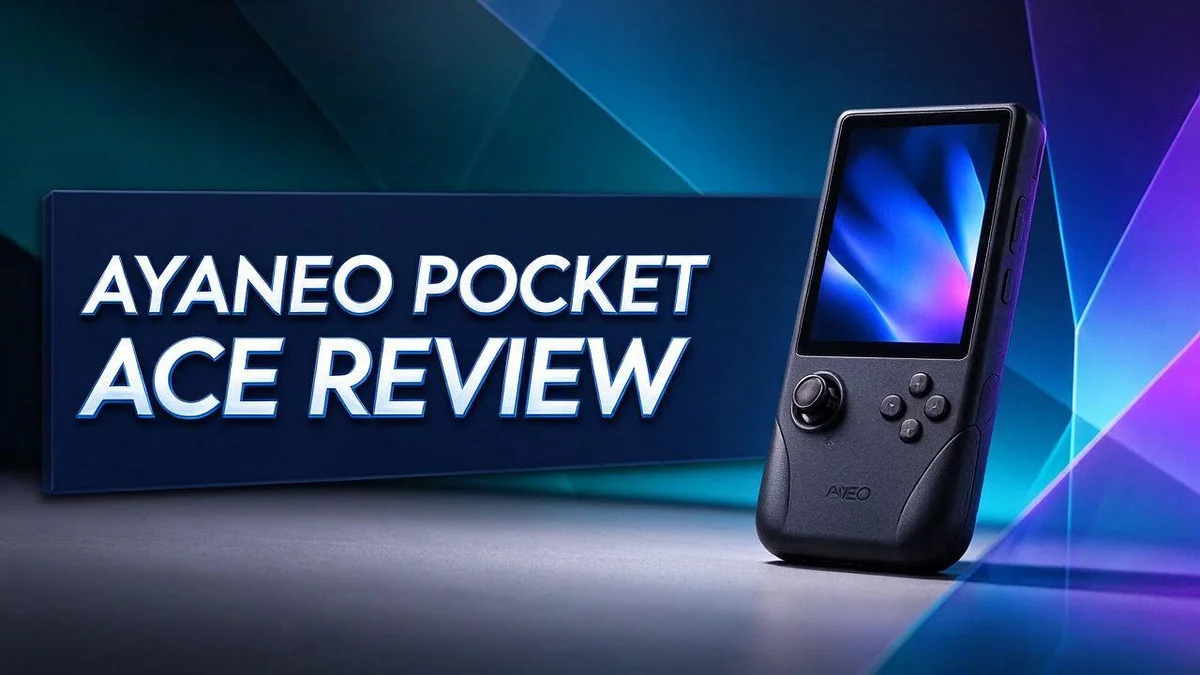
Ayaneo Pocket Ace Review: Specs, Retro Gaming Performance, and Verdict
Are you looking for a handheld that fits in your pocket and plays your favorite retro games? The Ayaneo Pocket ACE might be the device you need.
This compact Android handheld is built for retro gaming. It runs on the Snapdragon G3x Gen 2 chip and features a 4.5 inch IPS touchscreen.
Many users say the build feels premium in the hand. The horizontal layout also feels natural with classic controls.
Retro fans often choose it for Game Boy Advance games. Some players also find PS2 and GameCube titles playable on the smaller screen.
In this review, we will look at the design, performance, and gaming experience. We will also compare it with rivals like the Retroid Pocket 5 and the Ayaneo Pocket Micro. Let’s see if this handheld is right for you.
In a Nutshell
-
Platform: The Pocket ACE runs Android instead of Windows. Players get a simple setup built around classic games and easy app installs.
-
Processor: It uses the Snapdragon G3x Gen 2 chip. Ayaneo promises top tier performance for smooth retro play across many systems.
-
Display: A 4.5 inch IPS touchscreen shows 1620 by 1080 pixels. The horizontal layout suits handheld play, so your thumbs stay near the controls.
-
Memory and storage: Listed specs include 16GB RAM and 1TB storage. That gives you plenty of room for a large library of older games.
-
Niche spot: One user calls it the only handheld in the medium sized flagship niche. It sits between tiny pocket units and bulkier gaming machines.
-
Limits: Some players find PS2 and GameCube games just okay on the small screen. Expect some trade offs when you load heavier titles.
-
Rivals: The Retroid Pocket 5 and Ayaneo Pocket Micro compete closely. The Micro follows the Game Boy Micro look, so it may suit collectors who love that style.
Display and Visual Quality

- 【Snapdragon G3 Gen 3 Performance】 The Pocket FIT is powered by Qualcomm Snapdragon G3 Gen 3 with up to 15W...
- 【6" 144Hz FHD Display】 Enjoy a 1920×1080 IPS touchscreen with a smooth 144Hz refresh rate. The AYANEO...
Last update on 2026-11-06 / Affiliate links / Images from Amazon Product Advertising API
A small screen has to work hard to look good. Players notice fine details first, so clarity matters a lot. The sharp image helps menus, icons, and game art stand out.
Pixel density plays a big role here. Packing many pixels into this small panel keeps text clean. Retro games also look neat when the emulator scales them evenly.
Colors look rich on this type of panel. IPS screens usually offer wider viewing angles than many older handheld displays. Friends can glance at the game from the side without losing much detail.
Outdoor play can be tricky with any handheld. Bright sunlight may cause glare and wash out the picture. Turning up brightness or finding some shade often helps.
Motion looks smooth when frame rates hold steady. Fast action stays clear on a sharp panel. Your final experience still depends on the game and emulator settings you choose.
Text readability deserves a closer look. Menus and system labels should appear clear at arm length. Reading small captions during play feels easy, which helps when you check stats or save slots.
Brightness control matters in dim rooms too. Lower settings can feel easier on the eyes at night. Higher settings help when the room is bright. Adjusting the level as you go keeps your eyes relaxed.
Screen protectors can also help keep the glass clean. Fingerprints may dull the view over time. A soft cloth makes wiping quick and simple.
Think about your favorite games before you judge the display. Some titles look wonderful, while others need extra tweaks. Testing a few titles gives you the clearest picture of what to expect.
Overall, the screen gives retro fans a sharp and enjoyable view. Its compact size keeps the image close and personal. Clear visuals also make long sessions feel more comfortable.
Players who value sharp visuals will likely enjoy this handheld. Every player sees the screen differently, so test it in person when possible.
Performance and Emulation
When people judge a handheld for emulation, they want one answer. Does it run older games smoothly?
Emulation depends on three things. The chip, the emulator app, and the game itself all shape the final experience. Software often matters more than players expect.
Game Boy Advance and other early handheld titles need the least power. They usually run well with default settings. Players rarely need to adjust much.
PS2 and GameCube sit at a higher level. These systems demand more processing work. Busy scenes with heavy effects may slow down for some players.
Emulator choice makes a real difference. Many players test two or three apps before settling. Each app handles graphics and sound in its own way.
Settings deserve attention too. Lower internal resolution often gives a steadier frame rate. Many players trade a bit of sharpness for smoother action.
Heat is another factor to watch. Long sessions of demanding games can warm the body. Short breaks can keep the device comfortable.
Battery life drops faster during heavy emulation. Lighter titles can stretch a single charge much longer.
Updates matter over time. Developers often fix bugs and improve compatibility in new releases. Checking for updates now and then keeps the experience fresh.
Game libraries also shape performance. Some games need extra patches or specific settings to run cleanly. Searching community guides can save time.
Who gets the most from this handheld? Retro fans who enjoy tweaking settings will likely feel at home. Casual players may prefer a simpler setup with fewer steps.
Expectations help too. Think of this device as a tool for classic games rather than modern releases. That mindset leads to a happier experience overall.
In short, the emulation results look promising for handheld retro play. Patience and small adjustments will get the best out of it.
Build and Ergonomics
The first thing many players notice is how the Pocket ACE feels in the hand. One user describes the build as premium. That feeling matters when you carry a device every day.
Its compact body slides easily into a bag or jacket pocket. Short trips feel simple. You can pull it out during a commute or a lunch break without much fuss.
Ergonomics go beyond size, though. Grip comfort decides how long you can play before your fingers start to ache. Small handhelds can cramp your hands during long sessions, so test the grip if you get the chance.
Hand position matters a lot. A horizontal layout gives your thumbs a clear path to the main controls. This shape feels familiar to anyone who has used a classic handheld console.
Button spacing deserves a close look. Cramped inputs can cause missed presses during fast action. Comfortable spacing helps you stay accurate in platformers and fighting games.
Weight also shapes the experience. A lighter body reduces strain on your wrists. A heavier device may feel solid in the hand, yet it can tire your arms after an hour.
Think about where you play. Some people use a handheld on a couch. Others use it on a train. Your habits decide which shape feels right.
A compact frame suits travel. A roomier grip suits longer sessions at home. Try both styles in your mind before you decide.
Clean edges and a solid feel also reduce worry about small bumps in a bag. Many players value that peace of mind on busy trips.
A good fit makes you want to pick the device up again. Comfort turns casual play into a regular habit. That is why the way it feels in your hands deserves as much attention as the specs.
Top 3 Alternatives
Steam Deck OLED

Last update on 2026-06-21 / Affiliate links / Images from Amazon Product Advertising API
Valve built this handheld for flexible play. The Steam Deck OLED pairs a vivid 7.4-inch OLED screen with a comfortable grip. Its SteamOS system makes browsing a large game library simple.
Many players enjoy its solid battery life during commutes and trips. Docking support also lets you connect it to a TV for a bigger display. Fans of Steam will feel right at home from the first boot.
ASUS ROG Ally

- [Xbox experience brought to life by ROG] : The Xbox gaming legacy meets ROG's decades of premium hardware...
- [Xbox Game Bar integration] : Launch Game Bar with a tap of the Xbox button or play your favorite titles...
Last update on 2026-11-06 / Affiliate links / Images from Amazon Product Advertising API
This handheld runs full Windows. The ASUS ROG Ally gives gamers freedom to install launchers like Steam, Xbox, and Epic Games Store. Its AMD Ryzen processor handles demanding titles with ease.
The fast 120Hz display makes motion look smooth and responsive. Players who want to tweak settings often prefer this model. Its sturdy built-in controls feel solid during long matches.
Lenovo Legion Go

- MAX POWER, YOUR RULES – Play your way with the Lenovo Legion Go 2. Powered by an AMD Ryzen Z2 processor, a...
- MAX COOLING, MANUAL CONTROL – The Legion Coldfront thermal system is built to handle serious heat. Increased...
Last update on 2026-11-06 / Affiliate links / Images from Amazon Product Advertising API
Detachable controllers set this handheld apart. The Lenovo Legion Go features a large 8.8-inch screen that feels roomy during long sessions. Each controller can snap off for shared play or quick use.
Like the ROG Ally, it runs Windows, so many game stores work out of the box. A built-in kickstand helps with couch gaming and short breaks. Gamers who love variety often choose this model for its flexibility.
Controls and Input
Input quality shapes every session. Buttons send each press straight into the emulator. A slow or unclear response can ruin a good game.
Retro titles reward precise timing. That makes the controls deserve real attention.
Remapping opens up many options. Many retro players want their buttons to match the original console layout. Remapping lets you move each action to the spot your thumb expects.
Save your favorite setup so you can restore it fast.
Every system needs its own profile. A Game Boy title uses only a handful of inputs. A PS2 game needs many more.
Create separate profiles for each system. This way, you never guess which button does what.
Hotkeys save you from awkward moments. Hotkeys handle save states, menus, and exits without a trip to the home screen. Place them on buttons you rarely press during play.
This habit stops accidental saves in the middle of a boss fight.
Test every button before a long session. Press each one and watch for lag or double inputs. Check the directional pad on diagonals too.
Diagonal presses matter a lot in fighting games.
Analog input needs extra attention. Analog controls matter for 3D retro games. Move each control in a full circle and look for drift or dead spots.
Adjust sensitivity in settings if movement feels too twitchy or too sluggish.
External controllers are another option. Many players pair a Bluetooth controller for longer sessions. A larger grip can feel more comfortable over time.
Check that the device recognizes your pad before a trip.
Clear mapping makes the Pocket ACE feel natural. Good input turns a pile of old games into a fun daily routine. Spend a few minutes on setup, and you will avoid frustration later.
Software and Retro Game Library
The Pocket ACE runs Android, so it works like a small phone built for games. Most retro players already know how Android menus, file managers, and app stores work. That familiarity cuts down on setup time.
A frontend turns a messy folder into a game shelf. A frontend is a launcher that sorts your games by system, genre, or recent play. Instead of digging through folders, you scroll through a clean grid of titles. Many frontends can also download cover art, release dates, and short descriptions. This makes a large collection feel like a real library.
Planning your file structure early saves headaches. Name files and folders by system and region. Clear names help the launcher match the right artwork. Mixed or vague names often lead to wrong covers or missing games. Take a few minutes to sort your files before you copy them over.
Transferring games is simple, but keep your setup legal. Most people move files by USB cable or over a local network. Only load games you legally own. This keeps your library safe and avoids trouble later.
Bluetooth controllers add another layer of comfort. Android supports most standard Bluetooth gamepads. A second controller helps with local multiplayer games, and some players prefer a larger pad for long sessions. Check your controller’s pairing steps before a trip.
Backups protect hours of progress. Some emulators and apps can sync save files to cloud storage. A regular backup helps if a memory card fails or the device resets. Save your progress often, and keep a copy somewhere safe.
Because it runs Android, the device can handle more than retro games. Many standard mobile apps and games can run on it. Still, check app compatibility before you install anything important. Performance depends on the app, not just the hardware.
Software feel can vary between handhelds. If you compare the Pocket ACE with the Retroid Pocket 5, look closely at each launcher and menu layout. The way menus respond can change how much you enjoy daily use. Try the interface yourself when you get the chance.
Good software makes the whole library feel fun. Clean menus, neat artwork, and easy file sorting let you spend more time playing and less time searching.
Pros and Cons
Pros
- Premium build quality feels solid in your hands.
- Compact size fits easily in a pocket or bag.
- The Snapdragon G3x Gen 2 chip delivers strong performance.
- Android support lets you add many retro emulators.
- The 4.5 inch IPS screen shows sharp, clear visuals.
Cons
- The small screen makes PS2 and GameCube games feel just okay.
- Retro gaming is the main reason to buy it.
- Compact controls may feel cramped during long sessions.
- The Game Boy Micro style option has limited availability.
Who Should Buy It
The Pocket Ace suits a specific kind of player. It fits people who love retro games and want one device for their whole library.
Commuters and frequent travelers should also take a close look. The device slides into a jacket pocket, so gaming on a train or during a long wait feels easy. Just remember to pack a charger for longer trips.
Fans of Game Boy style handhelds may feel right at home. Someone who grew up with classic portable consoles will appreciate the familiar feel of a small screen and simple controls.
Fans of handheld history will enjoy the nostalgia factor. Holding a small screen device brings back memories of early portable gaming.
Players who want a dedicated Android handheld also fit well. They enjoy adding apps, emulators, and utilities on one screen instead of carrying a laptop.
Tinkerers and hobbyists may enjoy customizing it. Android lets them install tools, change launchers, and test new emulator builds.
Parents who want a gaming companion for kids may also like it. A small handheld with classic games keeps younger players busy during car rides and trips.
Players who expect a big screen for older 3D titles may want a larger device. Retroid Pocket 5 offers another path for shoppers to compare.
Windows PC gamers should skip this one. It runs Android, so Steam games and Windows apps stay out of reach.
Players chasing the latest blockbuster releases should look at a console or gaming PC. Those machines handle modern 3D titles far better than a retro-focused handheld.
Ask yourself one simple question before buying. What games do you play most often? If retro titles lead the list, this handheld makes a strong match. Buyers who mostly play modern games should choose something else.
Final Verdict
The Pocket Ace earns a spot in the right player’s bag. It offers a sturdy handheld for classic gaming on the go.
Think of it as a dedicated retro companion rather than a do everything machine. Its Android base keeps your options open.
Your expectations matter most here. Crisp 2D classics and handheld favorites look great on this screen. Heavier modern titles need more room to breathe.
When you compare it with the Retroid Pocket 5, look closely at screen size and comfort. Both devices appeal to retro fans, so your personal taste may decide the winner.
Pick the Pocket Ace if you want a compact, focused device. Choose a larger handheld if you want big screens for every system.
Skip this device if you plan to play mostly modern titles. Your time is better spent on a machine built for those games.
Read recent user feedback before you commit. Fresh opinions reveal how the device holds up over time, especially after months of regular use.
This handheld rewards patient players. Set your expectations, learn the setup, and enjoy many nostalgic hours. Your next favorite retro session may be waiting in your pocket.
Storage is a major win for collectors. The reported 1TB of space can hold a large library of classic games. Confirm the exact storage figure on the official listing.
The overall balance leans positive for fans of retro games. Strong build and smooth performance earn high marks. Minor screen limits matter less when you stick to 2D classics.
Think about your daily routine. Quick bursts of play fit this device nicely. Long sessions may test your patience on the small display.
Final check: match the device to your goals. If your goal is a focused retro shelf, this handheld delivers. If your goal is a versatile gaming machine, look elsewhere.
Your choice should feel right for your library.
Frequently Asked Questions
Can the Pocket Ace play Windows games?
No, the Pocket Ace runs Android, not Windows. It cannot play your PC game library. It works best with retro emulators and Android apps.
How does it differ from the Pocket Micro?
The Pocket Micro copies the classic Game Boy Micro look. The Pocket Ace runs a full Android system, so you get more software options. Pick the Micro for a pure Game Boy feel and the Ace for open flexibility.
Do I need tech skills to set it up?
Android handhelds often need some setup. You may install emulators and move game files yourself. Basic comfort with settings menus makes the process easier. Beginners can still learn it step by step.
What should I check before I buy?
Confirm the storage and RAM details on the product page. Some spec tables mix up their columns, so check each number. Compare the official specs with independent reviews to see the full picture.

DK is a technology expert who specializes in AI tools, software, and tech gadgets. He writes for How to Tech Info, providing detailed reviews and practical guides. DK helps readers discover the best AI applications, navigate new software, and choose the right tech gadgets.