Aqara Hub M3 Review: Matter, Thread, and IR Smart Home Hub Explored
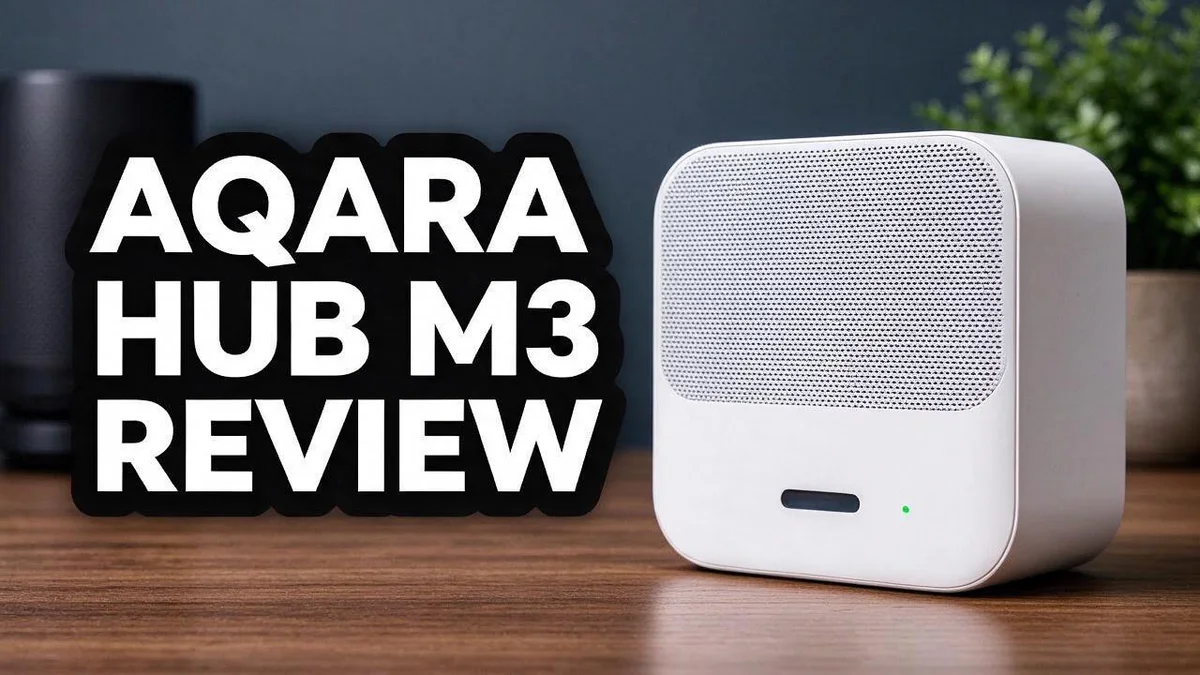
Smart homes need a hub that works well with many devices. The Aqara Hub M3 aims to do just that. It brings many smart home systems together in one small box.
Many people want their gadgets to talk to each other. This hub supports Zigbee, Thread, and Bluetooth. It also works with Matter and HomeKit, so your setup can grow over time.
Want to control your air conditioner or heat pump? The built in IR transceiver can handle that job. You can run automations locally, so your home keeps working even when the internet slows down.
Still, not every user feels the same way. Some people report Thread mesh issues and sensor dropouts. In this review, we explore what works, what does not, and whether this hub fits your home.
In a Nutshell
-
Matter bridge: The hub shares Aqara automations with Matter devices. This helps mixed brand setups work together. Your Matter devices can then use Aqara scenes without extra apps.
-
Local control: Automations run on the hub itself. Your routines can keep working even when the internet drops. Lights and plugs respond fast because nothing waits on the cloud.
-
Thread support: The hub supports Thread and Zigbee 3.0 sensors. Mesh networks can lock up at times, so placement matters. Placing the hub near the sensors can reduce dropouts.
-
Easy switch: One user moved from the Aqara E1 hub without trouble. Your existing setup may carry over smoothly. Check your device list before you start.
-
Mixed feedback: Some owners report sensor dropouts. Others have trouble with Home Assistant plugs and remotes. Reviews remain mixed, so test your gear first.
-
Stability tips: Firmware updates and a wired Ethernet connection often help. Keep the hub away from clutter. A steady power source also matters.
Radio Protocols and Network Connectivity

- [Multi-Protocol Hub with Matter Bridge] The M3 is a versatile hub supporting Aqara Zigbee and Thread devices...
- [Edge Compatibilities and Local Automations] The M3 serves as an Edge Hub, prioritizing local control and...

Last update on 2026-10-13 / Affiliate links / Images from Amazon Product Advertising API
The Aqara Hub M3 handles several radio protocols at once. This helps your devices stay in touch with each other and with your router.
The hub works on both 2.4 GHz and 5 GHz bands. Your phone and tablet can use the faster 5 GHz band. Older gadgets can stay on the 2.4 GHz band, which reaches farther through walls.
Bluetooth 5.1 adds another layer of connection. It helps with quick pairing for nearby gadgets. Bluetooth also works well during the first setup.
You can connect the hub in two ways. A cable offers the most direct link to your router. Wireless mode works when running cables is hard.
Power over Ethernet is an optional feature. It sends power and data through one network cable. This setup keeps the hub powered without a separate outlet.
Network placement matters a lot. Keep the hub away from thick walls and metal objects. Many people place it near a window or in a central room.
Think about how many devices share your network. Crowded airwaves can slow responses. Spreading devices across both bands can keep things smooth.
Check your router settings before setup. Make sure the 2.4 GHz band is turned on. Some routers combine both bands under one name, so this step saves time.
Good network habits help the hub last longer. Restart your router once a month. This clears old connections and keeps traffic light.
Keep an eye on signal strength in the app. Weak readings often point to a placement problem. Moving the hub a short distance can make a big difference.
Your router brand also matters a little. Some models handle many connected gadgets better than others. Choose a router that fits the size of your home.
Local Automation Performance
Speed is where local automation really shines. When a motion sensor detects movement, the signal reaches the hub and the light responds without a cloud trip. You can feel the difference in daily use.
Offline behavior deserves a closer look. If your internet connection drops, scenes built on sensors and plugs keep running. That makes the setup feel dependable during outages or router restarts.
Timing rules also become simpler to build. You can link a hallway door sensor to a light, then set that light to dim after a short delay. Short steps keep the chain easy to follow.
Missed triggers can break a routine. If one sensor fails to report, the rest of the steps may never start. Test each trigger by hand before you rely on it every day.
Good testing habits make a clear difference. Trigger each sensor yourself and check the app for activity. Write down which routines fail and at what time of day. Patterns often reveal the weak spot.
Simple routines usually perform best. Long chains with many conditions are harder to debug. Start with two or three steps, then add more once everything works well.
Lighting scenes benefit the most. Motion lights, night routines, and fan timers all feel quicker. Keep the number of active routines reasonable.
Mixed platform setups need extra care. One reviewer had a rough time with sensors, plugs, and remotes when pairing with Home Assistant. Test each device before you commit to a full layout.
Local automation rewards careful planning. Map out your favorite routines, test them, and keep them simple. With that approach, your smart home can feel fast and reliable every day.
Built-in IR Control and Speaker
Infrared control reaches devices that lack smart chips. Many older televisions, fans, and air conditioners rely only on remote controls. The hub can learn those remote signals and send them on command.
You teach the hub by pointing an original remote at its front sensor. The app then saves each button as a virtual control. After that, you can group buttons into simple scenes like “Movie Night” or “Cool Bedroom.”
The loudspeaker adds a different kind of feedback. Its 95 dB output can cut through a noisy kitchen or a busy garage. Short tones work well for doorbell chimes, timer alarms, or warnings when a door opens.
Place the hub where people gather most often. Sound carries best in open spaces, so avoid closed cabinets or corners behind furniture. A clear path helps the alerts reach everyone in the room.
Infrared has limits, though. Some remotes use radio signals or special codes that infrared cannot copy. Test each learned button before you rely on it in a routine.
Heat pumps benefit the most from scheduled commands. A warm morning start or a cool evening finish can run without opening an app. Many people enjoy this quiet, hands free comfort.
Combining both features creates helpful moments. For example, a speaker alert can confirm that an air conditioner turned on after a schedule ran. This quick feedback removes guesswork from daily comfort. Some households also use the speaker for reminders, such as laundry done or a pot on the stove. Keep alert sounds short so they do not annoy anyone nearby.
Label every learned button clearly. Names like “Living Room Fan Low” make automations easier to build later. Clear labels also save time when you troubleshoot.
Top 3 Alternatives
Hubitat C-8 Pro

- POWERFUL SMART HOME PERFORMANCE - EVEN WITHOUT INTERNET Hubitat C-8 Pro runs automations inside your home...
- CONTINUOUS PLATFORM UPDATES Hubitat Elevation hubs receive regular software updates that add new features...
Last update on 2026-06-15 / Affiliate links / Images from Amazon Product Advertising API
The Hubitat C-8 Pro is a local smart home hub. Your automations run on the device itself, so they keep working during internet outages. It supports Zigbee and Z-Wave devices from many brands.
Advanced users often choose this hub for its custom automation options. Local control gives you privacy and faster response times. Setup involves a web interface and some manual steps, so it suits people who enjoy tinkering with their system.
Homey Pro

- YOUR HOME CONNECTED: Bring all your smart home devices together with Homey Pro and experience a home that...
- YOUR HOME, YOUR RULES: Make all your devices work together seamlessly with Homey Flow. Switch your entire home...
Last update on 2026-11-05 / Affiliate links / Images from Amazon Product Advertising API
Homey Pro is a powerful smart home hub with a clean, friendly interface. It connects Zigbee, Z-Wave, Matter, and Bluetooth devices in one app.
Its visual flow builder makes automations simple to create, even for beginners. Many owners also enjoy the built-in app store for extra integrations. The hub also offers remote access, so you can check your home from anywhere.
Philips Hue Bridge

- WHAT’S IN THE BOX: Includes one Hue Bridge that unlocks the full potential of your Philips Hue system...
- SECURE AND STABLE CONNECTION: With Zigbee advanced technology, the bridge ensures a reliable connection that...
Last update on 2026-11-05 / Affiliate links / Images from Amazon Product Advertising API
The Philips Hue Bridge acts as the control center for Hue lights and accessories. It works best for people who already use Hue products around the house.
Setup takes only a few minutes with the Hue app. The bridge also works with popular voice assistants, so you can control your lights by voice. Hue users can add sensors and switches later. It is a good choice for homes that focus on lighting.
Thread Mesh Stability and Sensor Reliability
Thread is a mesh network, and mesh networks can wobble. Each device relays messages for its neighbors. This setup works well when the network stays calm.
Some owners report a different story. Thread mesh locking appears in many user complaints. Sensors may also drop out for a short time.
A dropout is not always a hub problem. Battery levels, distance, and nearby interference can all play a part. Check each sensor before you blame the hub.
Users online have mixed feelings. One reviewer called the hub “complete nonsense” for Home Assistant sensors, plugs, and remotes. Other owners report steady results with the same devices. That gap suggests setup choices matter a lot.
Firmware updates often help. Aqara releases fixes over time. Install every update and restart the hub afterward. Stability can improve after a clean restart.
Battery sensors need extra attention. Low power can cause weak replies. Replace cells early and keep spares on hand.
Think about your sensor mix. Motion sensors, door contacts, and temperature sensors each behave differently. Pair one device type at a time. Watch how it reports over several days.
Pairing order also matters. Add new devices one at a time. Let the mesh settle before you add the next sensor.
Keep a simple log of dropouts. Write down the time, the device, and the result. Patterns often appear within a week. A clear log helps you decide whether to adjust the setup or contact support.
Stable sensors make automations feel reliable. A missed motion alert can break a lighting scene at night. Test each sensor before you trust it with important tasks.
Ecosystem Bridging and Aqara E1 Migration
Many smart homes mix brands. The Aqara Hub M3 helps these systems work together. It acts as a bridge between Aqara devices and other platforms.
Its Matter and HomeKit bridge features matter here. Aqara automations can reach Matter ecosystems, so one motion sensor can trigger lights in another app.
Think of the hub as a translator. It takes Aqara signals and presents them in a language other platforms understand.
Moving from the Aqara E1 is simpler than many expect. One user reported a seamless migration, which suggests you may not need to rebuild everything from scratch.
Before you start, back up your current setup. Write down room names, scenes, and automations so you can rebuild them quickly.
Plan the switch in steps. Add the M3 first, then move devices one room at a time. This keeps your home running during the change.
Check each device after it moves. Test a light, a plug, and a sensor from every room. Small checks catch problems early.
Rename devices before you bridge them. Clear names like Kitchen Ceiling Light make voice commands easier across platforms.
Keep the old E1 hub nearby for a few days. If something fails, you can compare settings and restore the original routine.
Cross platform voice control becomes the biggest win. You can ask one assistant to dim a lamp that Aqara controls, even if your main app is different.
Bridged devices may show fewer controls in some apps. Confirm which features work in each ecosystem before you remove the old setup.
Expect some setup time for the bridge itself. Pairing steps and network checks take patience, but the process stays clear once you begin.
Third-Party and Home Assistant Compatibility
Home Assistant fans often ask one key question first. Will the M3 work with my existing setup? The answer depends on which devices you plan to connect. This section explains what works well and what needs careful testing.
Start with one test device. Pick a single sensor, plug, or remote before you move anything big. Watch how it reports in Home Assistant for a few days. This simple step shows problems early.
Decide who runs the logic. Your automations can live in the Aqara app or inside Home Assistant. Running the same rule in both places often causes confusing double triggers. Pick one home for each routine and stick with it.
Expect mixed results with some device types. Reviewers report uneven luck with third-party sensors, plugs, and remotes in Home Assistant. One frustrated user described the experience as complete nonsense. Your results may differ, so test before you commit to a full setup.
Read the Matter device types carefully. Some Aqara devices appear as simple switches or sensors after bridging. Others may lose features during the handoff. Check the entity list after each change so you know what you actually gained.
Search community forums for your exact model. Home Assistant users share fixes for specific device models. Look for posts about your exact sensor or plug. Real reports from owners often reveal workarounds that the manual skips.
Build a fallback plan. Keep a local rule for critical actions, such as a porch light at night. If the bridge drops, the basic routine still runs. This approach keeps your home predictable while you learn the setup.
Pros and Cons
Pros
- Keeps automations running locally when the internet drops.
- Brings Aqara devices into one hub for Matter and HomeKit setups.
- Controls heat pumps and other IR appliances from one place.
- Gives you Thread support in a single box.
Cons
- Thread mesh can lock up and freeze device control.
- Ethernet placement affects how stable the hub feels.
- Home Assistant users may need extra tweaks for some sensors.
Who Should Buy It
The Aqara Hub M3 fits some smart home owners better than others. It works well for people who already own Aqara gear. It also suits anyone who wants one box for Thread, Zigbee, and Bluetooth.
Apple Home users with Aqara devices may benefit most. The hub bridges Aqara devices into HomeKit through Matter. Your iPhone and Siri can then control gear from the app you already use.
Heat pump owners also have a good reason to look closer. The built-in IR transceiver controls air conditioners and heat pumps. You keep those controls in the same place as your sensors and lights.
Renters and light users can often skip it. If you only run a few lights or plugs, a simpler device may serve you well. The Apple HomePod mini or Amazon Echo Hub may feel easier for basic voice control.
Home Assistant power users should weigh their options first. Mixed reviews mention trouble with some third-party sensors, plugs, and remotes. A dedicated platform like the Hubitat Elevation C-8 Pro may suit those users better.
People who want zero fuss may feel frustrated. Thread mesh lockups and sensor dropouts appear often in complaints. If every alarm must fire on time, test the setup thoroughly first.
Samsung SmartThings Station suits homes that already use Samsung gear. It offers another route for mixed brand households. Compare each option against your daily routines before you choose.
Ask yourself three quick questions.
Do you own several Aqara devices? Do you use Apple Home or another Matter platform? Do you need infrared control for climate gear? If you answered yes to most of these, the M3 deserves a close look.
Final Verdict
The Aqara Hub M3 earns a solid place in a smart home, but it needs patience. It brings local control, Matter support, and infrared reach into one box. That mix stands out.
Still, the hub rewards owners who plan. Think of it as a strong foundation rather than a plug and play miracle. Stability depends on setup, firmware, and luck with each device.
Give the hub a few weeks before you judge it. Early glitches often fade after firmware updates arrive.
Who should say yes? Owners who already like Aqara gear will feel at home. The hub fits people who want their lights, sensors, and climate controls to keep working during an internet outage. Those who want a single bridge into Apple Home will also find it useful.
Who should say no? Someone who wants zero fuss may end up frustrated. Mixed reviews around Thread mesh issues and sensor dropouts are real. A simpler setup might suit a light user better.
Think about your future plans too. A hub that handles Matter and local rules today can grow with new devices. Choosing it is a bet on flexibility. That bet pays off when you test carefully and keep your options open.
The verdict is simple: it is a capable hub with real trade offs. The Aqara Hub M3 suits hands on builders more than hands off buyers. If you enjoy tinkering a little, it can become the quiet center of your home. If you want everything to work from day one, look at other options first. Either way, you will learn a lot about your home network.
Frequently Asked Questions
What does PoE mean for this hub?
Power over Ethernet lets the hub run from a network cable. You need a PoE switch or injector to use this option. It helps when you want one cable for both power and data, which keeps your setup tidy.
Does the hub support Zigbee devices?
Yes. It supports Zigbee 3.0 alongside Thread and Bluetooth 5.1. Your older Zigbee sensors and bulbs can join the same setup. This makes the hub a good fit for homes with mixed gear.
Can I connect it without an Ethernet cable?
Yes. The hub works over Wi-Fi on both 2.4 and 5.0 GHz bands. Wireless setup suits many homes. If you need a wired option later, the Ethernet port is ready when you are.
What is the built-in speaker good for?
The 95 dB loudspeaker can play loud alerts from your automations. Use it for doorbell chimes, leak warnings, or motion alerts. It makes important messages hard to miss.
How do firmware updates affect the hub?
Firmware updates can improve how the hub behaves over time. Check the app after setup and look for new versions regularly. Install updates when they arrive so you get the latest fixes.

DK is a technology expert who specializes in AI tools, software, and tech gadgets. He writes for How to Tech Info, providing detailed reviews and practical guides. DK helps readers discover the best AI applications, navigate new software, and choose the right tech gadgets.