TP-Link Deco BE25 Review: Wi-Fi 7 Mesh Performance, Ports, and Verdict
Is your home internet running slower than it should? Many households now stream, game, and work from home at the same time. A strong mesh system can fix dead zones and keep every device connected.
The TP-Link Deco BE25 aims to do exactly that.
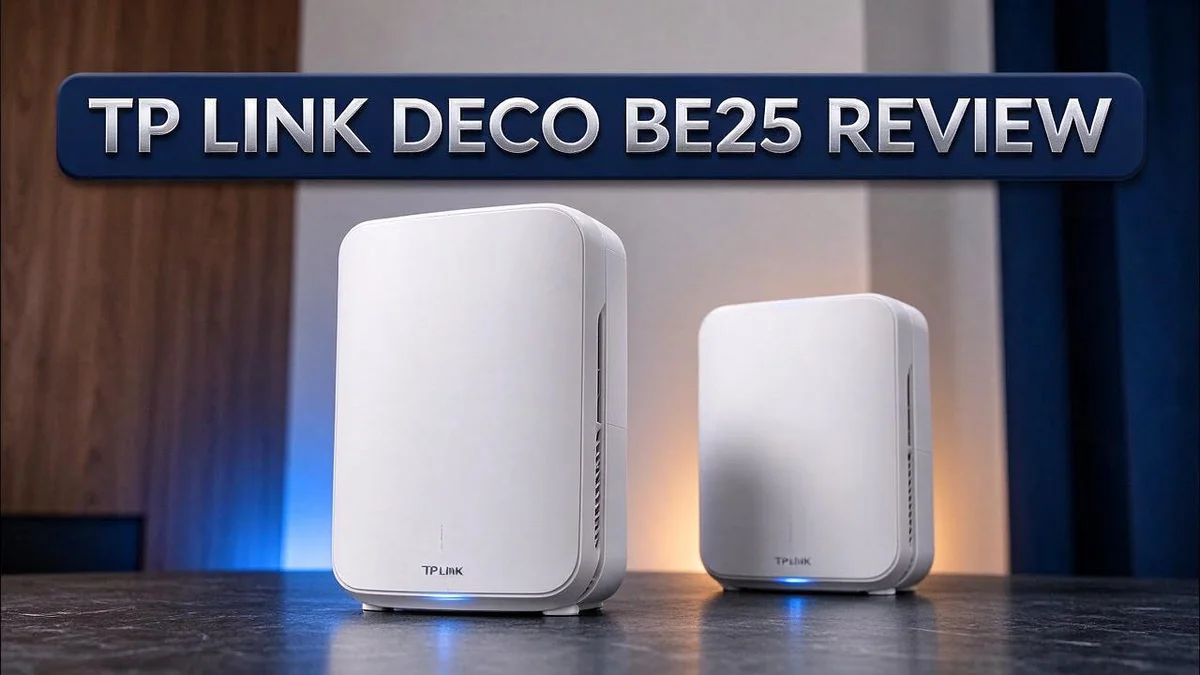
It is an entry level Wi-Fi 7 mesh system with a BE5000 rating. Its two 2.5GbE ports suit 2.5 Gbps fiber plans. Your wired connection will not hold you back.
Reviewers often describe it as Wi-Fi 7 made easy to reach. It also includes built in VPN support for extra privacy. Older devices still connect because the system stays backward compatible.
Still, it has limits. It skips the 6GHz band, and one user reported slower speeds on a 2 Gbps connection. This guide explains what the BE25 does well, where it falls short, and who should consider it.
In a Nutshell
-
Best fit for fiber homes: The two 2.5GbE ports match 2.5 Gbps fiber plans. Wired devices, such as a desktop or a game console, can use that full speed without a bottleneck.
-
Built-in VPN support: You can set up a VPN right on the system. Every device on your network gains that privacy layer, so you do not need to install software on each gadget.
-
Works with older gear: Older Wi-Fi devices still connect without trouble. You do not need to replace every phone, laptop, and tablet at once.
-
Missing 6GHz band: This model uses only two bands. In busy homes with many devices, that can mean more crowding on the airwaves.
-
Speed reports vary: One user saw limited Wi-Fi speeds on a 2 Gbps line. Test your own connection first, then decide if the system fits your needs.
-
Other options to compare: The NETGEAR Orbi 370 and ASUS ZenWiFi BD5 offer similar hardware. The TP-Link Deco BE63 and eero 6+ are also worth a look for larger or different setups.
Design and Build

Last update on 2026-11-05 / Affiliate links / Images from Amazon Product Advertising API
Good design starts with where you place the hardware. The Deco BE25 uses a mesh layout, so each unit talks to the others. Here is what matters most about its build.
Placement is the first step. Put one unit near your modem or router. Place the second unit where your signal starts to weaken. Avoid closets and thick walls.
Keep units away from microwaves and cordless phones. These devices can cause interference. Glass and metal surfaces can also block signals. Open shelves often work well.
Mesh units need a strong link to each other. A solid connection keeps speeds steady in distant rooms. Test each spot with your phone before you mount anything.
Look at the room layout. Open floor plans need fewer units. Homes with many walls may need an extra unit for full coverage.
The two 2.5GbE ports offer a wired option. Connect a gaming console or desktop computer to them. Wired devices get a more stable link.
Cable management is simple with this build. Keep power cords and cables away from foot traffic. A tidy setup looks better and stays safer.
Give each unit room to breathe. Electronics warm up during long downloads or heavy streaming. Leave open space around each unit so air can flow.
Think about where people use devices most. Put a unit near the couch, desk, or game area.
Setup runs through the Deco app. Follow the on screen prompts and add each unit one at a time. The steps stay clear from start to finish.
Plan for future growth. If your home gets bigger, you can add more units later. This flexibility saves you from replacing the whole system.
Overall, the build feels practical and easy to manage. Most homes can get good results with a simple plan. Map your rooms first, and the setup goes smoothly.
Wi-Fi 7 Performance and Speeds
Speed numbers on a box tell only part of the story. The Deco BE25 carries a marketed rating of up to 5 Gbps, but that figure assumes ideal conditions. Real results depend on your devices, your walls, and your daily habits.
Your devices matter most. A phone or laptop that supports Wi-Fi 7 can use newer features. Older gadgets still connect, but they run on older standards. Check your device specs before you expect a big jump.
Wider channels help the system move more data at once. Wi-Fi 7 also handles crowded airwaves better than earlier versions. This matters in apartments where many neighbors share the same space.
Speed tests work best when you run them the right way. Start with a wired test near the main unit. Then test from a bedroom or a backyard corner to see how the signal holds up.
Latency counts as much as speed. Video calls and online games feel smoother when delays stay low. Watch ping results, not just download numbers, when you judge the system.
Background tasks can slow things down. Cloud backups, large game updates, and smart home devices all share the same bandwidth. Schedule heavy downloads for late evening so daytime use stays fast.
Peak hours reveal the most. When several people stream at once, the system spreads the load across both bands. Many households notice steadier performance during these busy moments.
Speed also depends on your internet plan itself. Even perfect Wi-Fi cannot push data faster than the line allows. Confirm your provider delivers the speeds listed on your plan before blaming the mesh system.
Firmware updates matter too. Updates can improve stability and fix bugs over time. Check for new versions once a month so the system stays secure and responsive.
Think about the speed you actually need. Most homes do not need the top rating. Measure what your daily tasks use, then compare that number with your plan.
Setup and Management App
Setting up the TP-Link Deco BE25 takes only a few minutes. Download the Deco app on your phone, then follow the simple steps on the screen.
Create your TP-Link ID first. The app asks you to sign in with a TP-Link ID. Keep this login safe, because it lets you manage your network from anywhere.
Connect the main unit to your modem. Plug one unit into your modem with an Ethernet cable. Wait until the light turns solid before you move on.
Next, the app scans for the remaining units. Add each one when the app prompts you. Place them in rooms where the signal already feels strong.
Choose a clear network name. During setup, you pick a Wi-Fi name and password. Write them down, so family members can join without asking you each time.
See every device on one screen. The home screen lists all connected devices. You can rename each one, such as “Kids Tablet,” so you spot it fast.
Set up a guest network. Visitors often want internet access without seeing your personal devices. Look for guest network options in the app settings. A separate guest network keeps your shared files safe.
Pause devices when needed. Many households use app controls to pause a device at bedtime. This helps children keep a healthy routine without extra arguments.
Check unit status when something drops. The app shows whether each unit is online. If one goes offline, restart it or check the cable first.
Review settings once a month. A quick check keeps your network tidy. Remove old devices, confirm your password still works, and read any app notices.
The app makes management simple. Most tasks take just a few taps. Spend a few minutes each month, and your home network stays easy to control.
Top 3 Alternatives
Eero Pro 7

- WIFI AT THE SPEED OF LIFE - eero Pro 7 brings next-generation speed and reliability to home and business...
- RELIABLE CONNECTIVITY - eero Pro 7 helps eliminate dead spots, so you stay connected across different floors...

Last update on 2026-11-05 / Affiliate links / Images from Amazon Product Advertising API
The Eero Pro 7 offers fast Wi-Fi 7 speeds for busy homes. It covers large spaces with a simple setup. The app guides you through each step, so you can finish in minutes.
It works well for families with many devices. Streaming, gaming, and video calls stay smooth in every room. You can also add more units later to extend your coverage.
Netgear Orbi 970

Last update on 2026-11-05 / Affiliate links / Images from Amazon Product Advertising API
The Netgear Orbi 970 suits homes that need top performance. It uses a dedicated link between units, which keeps speeds steady even through thick walls.
Power users often choose this system. It includes advanced settings for gamers and home offices. Parental controls and security tools help protect your network, too.
TP-Link Deco BE63

- ...
- ...
Last update on 2026-11-05 / Affiliate links / Images from Amazon Product Advertising API
The TP-Link Deco BE63 brings Wi-Fi 7 to a compact design. It fits well in apartments and townhouses. Setup stays quick with the Deco app.
This model suits people who want reliable speeds without a complicated setup. Each unit adds coverage, so you can grow your network over time. It also handles everyday tasks like browsing, streaming, and video calls with ease.
Coverage and Mesh Expansion
Coverage is the main reason many homes choose a mesh system. The TP-Link Deco BE25 spreads Wi-Fi across the whole home. Many families use it in houses with several floors. Each unit repeats the signal, so devices stay connected in far corners.
Start with a walk test. Carry a phone through every room you use. Watch for weak bars, slow pages, and dropped calls. These spots show where coverage fades most.
Walls change how far a signal travels. Brick, concrete, and metal cabinets block radio waves more than drywall does. Stairs and floors also weaken the signal.
Place each unit at a higher spot. Put it on a shelf or a table instead of the floor. Radio waves travel better when they start from a higher point.
A good location sits between the main unit and the weak area. Pick a spot with a clear line of sight where possible. Avoid tucking it inside a closet or cabinet.
Outdoor spaces need special thought. A unit placed near a back window can reach a patio or garden shed. Keep it sheltered from rain. Test the signal outside before you mount anything.
Basements and garages often need extra help. The main unit may sit on the top floor, far from these rooms. Basements often hold game consoles and home offices. A satellite unit on the ground floor can close that gap.
Think about how devices connect. The BE25 uses both bands to serve phones, laptops, and smart plugs. Devices move between units as you walk around. You rarely need to switch networks by hand.
Older gadgets still connect fine. The system works with earlier Wi-Fi generations, so an old printer or tablet stays online. Coverage helps every device, not only the newest ones.
Watch for dead zones after changes. Moving furniture or adding a new appliance can change the signal path. Run your walk test again after each change. A quick check keeps the whole home covered.
Ports and Wired Connectivity
Wired connections still matter in a wireless home. The TP-Link Deco BE25 includes two 2.5GbE ports for devices that need a steady link.
Each port supports speeds up to 2.5 Gbps. That speed fits many 2.5 Gbps fiber plans well.
Desktop computers and gaming consoles often benefit most from a cable. A wired link keeps lag low and connection drops rare.
A 2.5GbE port only reaches top speed when your device matches it. Many older computers use standard gigabit ports instead. In that case, the connection runs at 1 Gbps.
Check your device specs first. Look for 2.5GbE or 2.5 Gigabit in the network settings or on the label.
Cable quality also plays a role. Use Cat6 or higher for the best results. Damaged or cheap cables can slow your speeds.
Wired backhaul is another helpful option. You can link satellite units with an Ethernet cable instead of relying on wireless signals. This keeps the mesh network fast and stable between rooms.
Think about where your wired devices sit. Smart TVs, network storage drives, and home office desks often sit far from the main unit. Plan cable routes before you set up the system.
Use the extra ports wisely. Connect a streaming box or game console to a satellite unit near the TV. Each wired device frees up wireless space for phones and tablets.
Ethernet ports also help when Wi-Fi acts up. You can still reach the internet through a cable while you troubleshoot signal problems.
Check your modem as well. Your modem must support the speed you want from the ports. Otherwise, the bottleneck stays at the modem.
Good cable habits save time later. Label each cable at both ends so future changes stay simple.
Wired and wireless devices work well together. Put speed-sensitive gear on cable and let mobile devices use Wi-Fi. This mix balances speed, convenience, and clean network traffic.
Pros and Cons
Pros
- Supports the latest wireless technology in a compact mesh kit
- Two 2.5GbE ports can handle fast fiber internet
- Older devices still connect without trouble
- Built in VPN support helps protect your traffic
- Delivers marketed speeds up to 5 Gbps
Cons
- No 6GHz band for less crowded wireless channels
- Some users report slower speeds on a 2 Gbps connection
- Lacks the extra band found on tri band systems
- Real speeds depend on your devices and home layout
Who Should Buy It
This system suits people who want a simple upgrade. Many buyers come from an old router that drops signals in a few rooms. The Deco BE25 gives those homes a fresh start with the latest wireless standard.
Medium sized homes fit this kit best. A three bedroom house or a two floor apartment often needs only two or three units. Larger homes may need more units than this kit offers, so plan ahead if your space feels wide or spread out.
Renters can also gain a lot here. The units are compact and easy to move. Setup happens through the app in a few minutes. Packing up for a new place feels much less stressful.
First time buyers often feel nervous about networking gear. This model welcomes them with clear steps and a friendly guide.
Busy families with many phones, tablets, and smart TVs also benefit. Several people can stream video at the same time. Everyday household demand feels easy for this kit.
Home workers who need stable video calls make a good match. They can upload files and join meetings with fewer interruptions.
Older adults or relatives who need help can use the app too. Family members can help manage settings from their own phones.
Smart home fans with cameras and plugs will see a steady connection. Many devices can join at once without much trouble.
Shoppers who skip the 6GHz band should look here. Most homes do not need that extra band yet. This model keeps things simple and easy to manage. Fewer settings mean less confusion for beginners.
People with heavy gaming needs or very large homes may want a stronger option. A tri band system could serve them better.
Think about your home first. Measure your space, count your devices, and check your internet plan. A good match leads to a happy setup that lasts for years.
Final Verdict
The TP-Link Deco BE25 earns a spot on the shortlist for many homes. It brings Wi-Fi 7 into a compact mesh kit. Overall, it offers modern wireless support with a simple setup.
This system works best for people who want a clean upgrade. It can replace an aging router without much fuss. Homes with a growing list of devices will notice the difference fast.
Who should look elsewhere? Power users with very fast plans may want more room to grow. Shoppers who want an extra band should consider a tri band model. The BE63 offers that extra space for crowded networks.
Marketing numbers can look bold on paper. Everyday results often land below the top claim. Test your own setup before you judge the performance.
The BE25 faces tough rivals. The NETGEAR Orbi 370 and ASUS ZenWiFi BD5 share similar hardware. The Deco X55 and eero options also appeal to many shoppers. Compare the features that matter most to your daily life.
Plan your placement before you start. Put the main unit near your modem. Place satellites where signals still feel weak. A good layout makes every room feel stronger.
Setup often feels quick and direct. The app guides you through each step. That friendly process helps first time users feel confident.
Think about future plans too. Smart home gear, new laptops, and streaming boxes all add load. Wi-Fi 7 support gives you more breathing room. That extra headroom can delay your next upgrade.
In short, the BE25 suits simple, modern homes. It gives you Wi-Fi 7 without extra complexity. Pick it if you want a dependable mesh system that grows with your needs. Skip it if you need the newest band.
Frequently Asked Questions
Does the BE25 support a 2.5 Gbps internet plan?
Yes, the two 2.5GbE ports match a 2.5 Gbps fiber line. Your wireless speed may still fall short of that number, though, because walls and distance slow signals down.
Will the BE25 work with my older phone and laptop?
Yes. The system stays backward compatible with older Wi-Fi generations. Older gadgets still join the network, but they will not reach the newest speeds.
Can I skip the 6GHz band and still get good performance?
Yes. Browsing, streaming, and video calls run well on the two standard bands. Heavy traffic from many devices at once may feel slower in crowded homes.
How should I place the satellite units?
Put each unit halfway between the main unit and the weak spot. Keep it out of closed cabinets and away from thick metal objects. Good placement often matters more than the hardware itself.
Can I use the extra ports for a smart TV?
Yes. A wired connection gives a smart TV or game console a steady link. This helps when streaming in high quality or when a nearby wall blocks the wireless signal.

DK is a technology expert who specializes in AI tools, software, and tech gadgets. He writes for How to Tech Info, providing detailed reviews and practical guides. DK helps readers discover the best AI applications, navigate new software, and choose the right tech gadgets.