Aqara Panel Hub S1 Review: Matter Smart Home Control Panel Tested
Tired of jumping between apps just to turn off a light? The Aqara Panel Hub S1 Plus wants to fix that. It puts your smart home controls on one bright screen on your wall.
Your whole house fits on one panel. The 6.9 inch touchscreen lets you manage lights, temperature, cameras, and energy use in a few taps. You can also use your voice or the Aqara app.
Setup takes some planning. Wall mounting needs wiring into a wall box, so an electrician may be a good idea. Still, the screen stays easy to read in bright sunlight.
Is it the right hub for your home? Let’s find out. In this review, we cover the design, the dashboards, the connections, and the daily experience.
In a Nutshell
-
Solid build quality: The panel feels well made. It compares well with earlier Aqara panels, so you can expect a sturdy device on your wall.
-
Easy to read outdoors: The screen offers good viewing angles. It stays usable even in bright sunlight, which helps in sunny rooms.
-
Fast dashboards: You can set up to 10 dashboards. They load quickly, and your devices respond with almost no delay.
-
Broad connectivity: The hub supports Matter and Zigbee 3.0. It also supports HomeKit in the EU, so many smart devices can work together.
-
Three ways to control: You can use your voice, touch the screen, or open the app. Pick whichever method feels easiest for you.
-
Some trade-offs to know: The screen resolution is not the best. Wall mounting requires wiring into a wall box, so hire an electrician if you feel unsure. Home security mode control from the panel is not confirmed yet.
Display and Dashboard Experience

- [Multi-Protocol Hub with Matter Bridge] The M3 is a versatile hub supporting Aqara Zigbee and Thread devices...
- [Edge Compatibilities and Local Automations] The M3 serves as an Edge Hub, prioritizing local control and...

Last update on 2026-10-13 / Affiliate links / Images from Amazon Product Advertising API
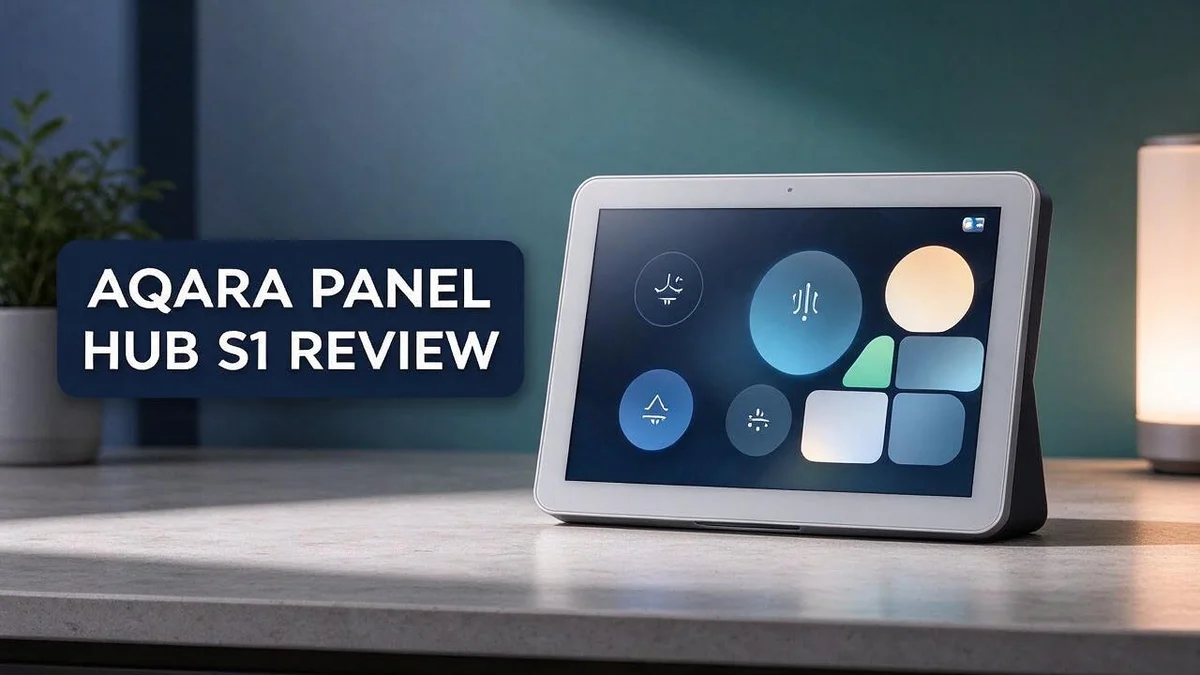
Dashboards are where the panel really shows its value. You can group devices by room, mood, or daily routine. Each page then feels like a clear snapshot of your home.
Taking time to plan the layout pays off. Start with the rooms you visit most. Add energy and camera pages later, once you know what matters to you.
The screen responds quickly when you tap a tile. A light switches on, and the icon changes almost at once. That instant feedback makes the panel feel more like a physical switch than a menu.
Loading delays are rare during normal use. Pages open without long waits, even when many devices sit on the same dashboard. This speed makes quick checks in the morning easy.
The panel also cuts down on app switching. Lights, thermostat, and cameras sit side by side. You can see at a glance whether the back door is locked or a heater is still running.
Think about who uses the panel, too. Children may want simple pages with big buttons. Adults often prefer a detailed page with energy data and scenes.
Keep the design simple for guests. Guests need only a few key controls, such as lights and temperature. Hide advanced pages so they do not get confused.
Small text can look soft up close, so keep labels short and large. Clear labels help everyone read the dashboards without strain.
Icons matter more than most people expect. Pick images that match each device, like a bulb for lights or a flame for heating. Your family will find controls faster that way.
Use scenes to reduce taps. One tile can dim the lights, lower the blinds, and start a movie mode. Scenes keep evening routines quick and simple.
Review your dashboards every few months. Remove tiles you never use. A tidy layout keeps the panel fresh and easy to scan.
Smart Home Protocol Support
Protocols decide which gadgets your hub can control. The Aqara Panel Hub S1 Plus supports several of them. That makes mixing brands much easier.
Think of protocols as a shared language. Each device speaks its own language. The hub must understand that language to send commands.
Matter helps devices from different brands work together. Many newer gadgets support this standard. Setup often feels simpler with fewer apps.
Zigbee 3.0 covers many sensors, plugs, and bulbs. Those devices can join the same panel. Your existing sensors may already fit in.
Wireless switches add flexibility. The panel supports up to six wireless switches on Matter. Place them where your hands naturally reach.
HomeKit support depends on your region. The EU model adds HomeKit support. Check the model code on the box.
Voice assistants rely on the same connections. Your spoken commands travel through the hub to each device. Test each command after setup.
Start with your devices, not the hub. Write down brands, models, and their protocols. Then decide which features matter most to you. This order keeps your setup focused.
Check compatibility before you commit. Make a list of your current gadgets. Look up each one for Matter, Zigbee 3.0, or HomeKit support. This quick step saves time and frustration.
Some older devices may not pair with the panel. Keep a backup plan for those products. Your smart home can still grow around them.
Watch for limits in older gear. Some devices use uncommon protocols. Those may need a separate bridge or app.
Matter support could shape your future purchases. Buying Matter compatible products gives you more choice later. Old and new gadgets can share one control point.
Read the setup notes carefully. Protocol choices affect pairing steps. Follow the order shown in the app for the best results.
Protocol support forms the core of this hub. A strong protocol list means your home can grow over time. Start with what you own today. Then add new devices with confidence.
Installation and Wall Mounting
Mounting the panel on a wall gives your home a clean and tidy look. The install takes more care than placing it on a table, so plan each step before you start.
Start by choosing the right spot. Pick a wall near the main living area or the front door. Choose a height where adults can reach the screen without stretching.
Check the wall box first. The panel needs a wall box behind it to hold the wiring safely. Open the wall plate or look at the existing wiring to see what you already have.
Turn off the power at the breaker before you touch any wires. Use a voltage tester to confirm the circuit is dead. This simple check protects you and the panel.
Wiring is the trickiest part of the job. Match each wire to its matching terminal and tighten the connections firmly. Take a photo before you disconnect anything, so you can compare later.
Hire an electrician if you feel unsure. Wiring mistakes can damage the panel or create a fire risk. A licensed pro can finish the job quickly and safely.
Signal strength matters too. Thick walls and metal objects can block wireless signals from your smart devices. Keep the panel within easy range of your other gear.
Use a spirit level before you tighten the screws. A straight panel looks neat and sits flush against the wall. Crooked installs can also strain the mounting plate over time.
Tidy the cables as you go. Push extra wire back into the wall box and leave a little slack. This makes it easier to remove the panel later for updates or service.
Power on the panel and test every control. Tap a dashboard tile, speak a voice command, and open the app. Confirm everything responds before you close up the wall.
Good planning makes this job smooth. Take your time, follow each step, and you will enjoy a clean wall mounted hub for years.
Top 3 Alternatives
SwitchBot Hub 2

- Smart WiFi Thermometer Hygrometer: The SwitchBot Hub 2 features a built-in industrial Swiss-made chip...
- Helps Consolidate All Your Infrared Remotes: With Smart Learning, our smart home hub can help you add tons of...
Last update on 2026-06-17 / Affiliate links / Images from Amazon Product Advertising API
The SwitchBot Hub 2 suits people who want a simple smart home setup. It works as a hub for many compatible devices, and it also reads temperature and humidity in your room.
You can control lights, plugs, and blinds from one app. It also works with popular voice assistants. Setup takes only a few minutes, and many renters like it because it needs no complex wiring.
Aqara Hub M3
- [Multi-Protocol Hub with Matter Bridge] The M3 is a versatile hub supporting Aqara Zigbee and Thread devices...
- [Edge Compatibilities and Local Automations] The M3 serves as an Edge Hub, prioritizing local control and...
Last update on 2026-10-13 / Affiliate links / Images from Amazon Product Advertising API
The Aqara Hub M3 focuses on stable connections and local control. It supports Matter and Thread, which helps devices talk to each other. It fits well in homes with a larger number of smart gadgets.
Many users like that automations run even when the internet goes down. The hub works with many sensors and switches. Installation feels straightforward, and the setup guide is easy to follow. Many users also find the app simple to use.
Sonoff NSPanel Pro

- 【All in One Control Panel With】 Enjoy a larger view with the 4.7-inch display that Control your home with...
- 【Home Security】Customize 3 modes by setting different arming devices. When a sensor is triggered, the...
Last update on 2026-11-05 / Affiliate links / Images from Amazon Product Advertising API
The Sonoff NSPanel Pro gives you a touchscreen control panel for your home. It runs on open firmware, so tech fans can customize the screen.
You can use it for lights, thermostats, and scenes. It connects to Home Assistant for advanced automations. The screen also shows weather and clock details. This option suits people who enjoy hands on tinkering.
Everyday Usability and Responsiveness
Daily use is where the Aqara Panel Hub S1 Plus shows its strengths. Good viewing angles mean anyone nearby can read it. The screen even works in bright sunlight.
Morning routines feel smoother with the panel. You can start the day by turning on the kitchen lights and checking the temperature in one place.
Feedback arrives right away after you press a button. You see the light change or the fan start, so you know the command worked.
Voice commands fit well into busy days. You can speak a request while your hands hold groceries or a child. The panel then shows the result on screen.
Camera feeds may look less crisp than on a phone. The resolution is not the best, so detailed views need a closer look.
Home security is a different story. Arming the home security mode from the panel is not confirmed yet, so check this before you rely on it.
Energy monitoring adds a helpful habit. Checking usage on the wall takes seconds, so you may spot waste sooner.
Some people prefer a quick look before leaving home. A glance confirms that lights are off and the temperature is set.
Wireless switches add extra control points. The panel supports up to six of them on Matter, so you can place switches where you need them.
Lighting and temperature are the daily controls most people use. Having both on one screen keeps those tasks quick and simple.
The panel works well as a shared control point. Each family member can check the house status before heading out.
Smart home beginners may find the panel friendly at first. Start with a few favorite tiles and add more as you feel confident.
Overall, the panel fits smoothly into daily routines. Its clear feedback makes busy days feel less scattered.
Camera Streaming and Energy Monitoring
Streaming a camera feed on a wall panel feels handy. You can glance at the front door without grabbing your phone. The screen gives a quick view from across the room.
Good viewing angles help a lot here. Several people can stand in different spots and still see the feed.
The panel also stays readable in bright sunlight. That matters for a kitchen window or a busy hallway.
Still, set realistic expectations for the picture. Use the panel for quick checks, not detailed footage review.
Keep your phone app nearby for closer looks at any event.
Energy monitoring works in a similar way. The panel shows your home’s usage at a glance.
This habit saves time. Instead of opening a separate app, you check the numbers as you walk past.
You might spot a heater or appliance that stays on too long. Small fixes add up over weeks.
Think about where you place the panel. A spot near the kitchen or entry lets you check the feed and the energy data together.
Use the panel as a daily dashboard. Pair it with wireless switches for quick control while you review the readings.
Over time, you learn which routines draw the most power. Then you can adjust them with a single tap.
Households with kids or pets may value quick checks. A glance at the panel can settle a question at the door.
Energy data also helps during seasonal changes. Winter heating and summer cooling often drive the biggest spikes in use.
Look at the readings once a week. Compare the numbers to see what changed in your routine.
The panel does not replace a full energy report. It simply gives you a fast snapshot of what is happening now.
Test the setup for a few days first. Watch how the camera feed and energy readings fit your daily life.
Pros and Cons
Pros
- Solid build quality that compares well with earlier Aqara panels.
- One place for control that would otherwise sit across many apps.
- Quick loading dashboards keep your daily routine moving.
- Room to grow with support for up to six wireless switches.
Cons
- Resolution is not the best, so small text can look soft.
- Installation takes more effort than a plug in device.
- Some features depend on your region, such as HomeKit support on the EU model.
Who Should Buy It
The Aqara Panel Hub S1 Plus suits people who want one clear place for smart home control. It brings lights, climate, cameras, and energy data onto a single screen.
Busy households gain the most from this panel. Parents and families with many devices can check everything before leaving the house. Less app switching saves time each day. A shared home makes the panel even more useful because everyone uses the same screen.
Smart home beginners can also benefit. The touchscreen and voice control feel simple to use. Guests and older relatives often find a wall panel easier than a phone app.
Owners who already use Matter or Zigbee devices will feel at home here. The panel supports both standards. It also works with up to six wireless switches, so the setup can grow over time. Good viewing angles also help when several people use the panel.
Apple users in the EU should check model details first. HomeKit support depends on the region. Make sure the EU model matches your home setup before you buy.
People who want strict home security control may want to wait. Arming the security mode from the panel is not confirmed yet. Keep a phone app ready for alerts and changes.
Anyone without wiring experience should think carefully. The wall mount needs wiring into a wall box. Many people will need an electrician for this job. Renters or people who want a simple setup may prefer a plug in device.
Homeowners who care about energy will appreciate the monitoring tools. Seeing live numbers on the wall can reveal a heater or appliance that runs too long. That small habit can build better routines.
Pick this panel if you value daily simplicity. It suits homes that already own several Aqara or Matter devices. Skip it if you need sharp screen detail or hands free security alerts. Read the setup notes before you commit.
Final Verdict
Our final take is simple. The Aqara Panel Hub S1 Plus is a strong pick for a home that already runs on smart devices. It turns a scattered setup into one calm screen.
Check your region first. Some features, such as HomeKit support, depend on the model you choose. Look at the model code before you order so you know exactly what works in your home.
Think about your whole setup, not just one gadget. If you mix Matter and Zigbee devices, the panel fits in with ease. If you only own a couple of smart plugs, a simpler hub might suit you better.
Busy households are the clear winners. Families juggling school runs, work calls, and many devices can scan the home in seconds. Everyone gets the same view, so fewer questions get asked.
Smart home beginners can also start here. The screen guides you through daily controls without a steep learning curve. Still, expect a short setup period while you link devices and build your dashboards.
Plan the install before the box arrives. The wall mount needs wiring into a wall box, so an electrician is a smart call if you feel unsure. A careful install now saves frustration later.
Security fans should wait. If you need strict control of your alarm mode from the wall, this panel may not meet that need yet. Keep your current security app as your main tool for now.
Overall, the panel earns a place in a busy, connected home. It looks neat, responds fast, and brings your daily checks into one spot. Pair it with a few wireless switches, and it becomes a true command centre.
Our advice is to test the basics first. Add a few devices, set up one or two dashboards, and see how often you use them. Then decide whether the full setup fits your daily life.
Frequently Asked Questions
Does the panel work with Matter devices?
Yes, it does. The panel supports Matter and Zigbee 3.0, so you can bring many compatible devices into one place. Check the device label or box before you buy. This helps you avoid surprises during setup.
Can I watch my cameras on the screen?
Yes. The panel supports camera streaming, so you can check a live feed without opening a separate app. This is handy when you want a quick look at the front door or a child’s room. You can see what is happening in seconds.
Can I use my voice to control the panel?
You can. The panel accepts voice, touch, and app commands. Most people mix all three during the day. Use whichever method feels most natural in the moment.
Can I set different layouts for each room?
Yes. You can create up to 10 customizable dashboards. Give the kitchen one layout and the bedroom another. Each screen shows only the controls you need, so daily use stays simple and clear.
Can I read the screen in bright sunlight?
Yes, the screen stays readable in bright light. The viewing angles are also wide, so people across the room can see it clearly. You can glance at it from the couch or the kitchen counter.

DK is a technology expert who specializes in AI tools, software, and tech gadgets. He writes for How to Tech Info, providing detailed reviews and practical guides. DK helps readers discover the best AI applications, navigate new software, and choose the right tech gadgets.